
Add Bunnings AU or NZ Marketplace
Points to consider before you connect:
- If you're new to Omnivore, simply select Bunnings Marketplace during the sign up process after installing the Omnivore app and follow the prompts using the below information as a guide.
- Existing Omnivore Customers adding Bunnings follow the steps below.
- Have your Bunnings Marketplace Account login details handy as you will need them.
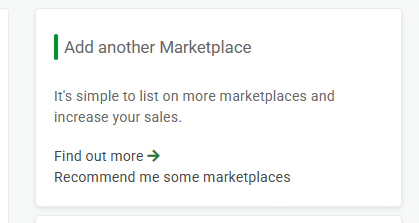
From your Omnivore Dashboard click Add New Marketplace from the right had section.
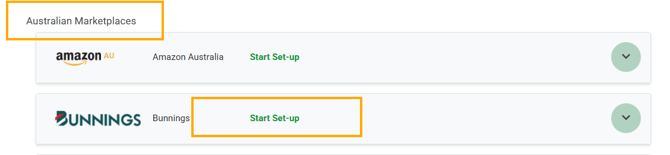
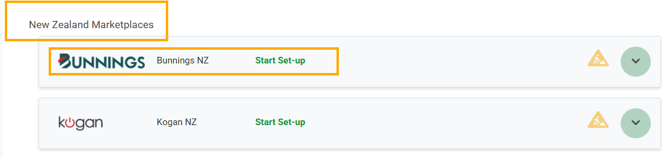
Select Start Setup next to the Bunnings icon from the list of marketplaces - make sure you choose the correct country:
-
- For Australia:
- For New Zealand
- For Australia:
After adding the marketplace, you will be taken to the Omnivore Dashboard.
Go to your relevant marketplace to connect:
Connect to Bunnings Australia
Go to Settings - Bunnings - General for Australia
Connect to Bunnings New Zealand
Go to Settings - Bunnings NZ - General for New Zealand.
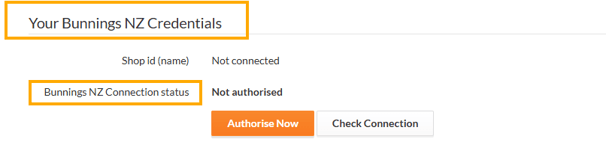
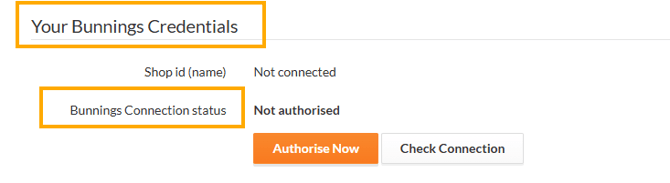
Authorise the connection to Bunnings from Omnivore
Click Authorise Now
You will be directed to the Mirakl Login page, you will need to sign in to Bunnings/Mirakl using your account details.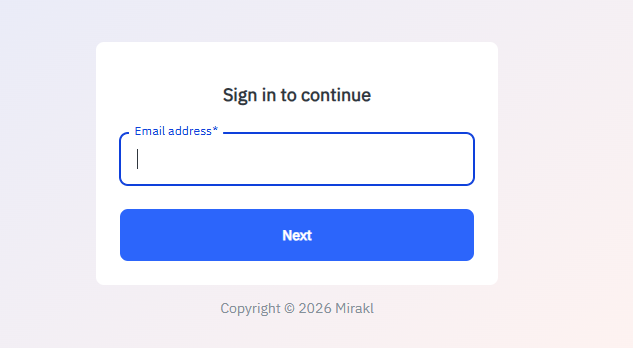 Once logged into your Mirakl account, you may be asked to delect your shop - if you have two Selling accounts for Bunnings, make sure you select the relevant AU or NZ one.
You MUST connect your Omnivore Bunnings AU marketplace to your AU selling account and your Omnivore Bunnings NZ marketplace to your NZ selling account. 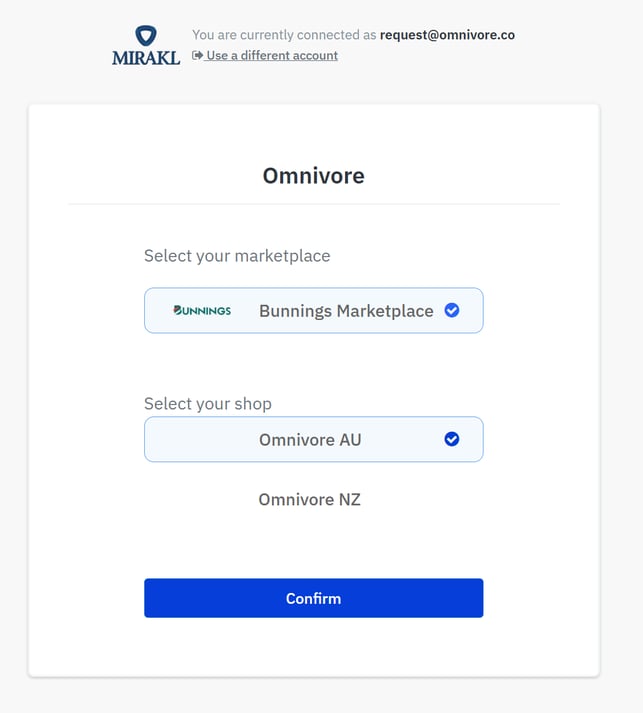
Once you’ve accepted everything in Mirakl, you will be returned to Omnivore.
Navigate to return back to the Settings - General - Bunnings page in Omnivore. You should see your Shop ID authorised. Click the Check Connection button to ensure this process worked successfully.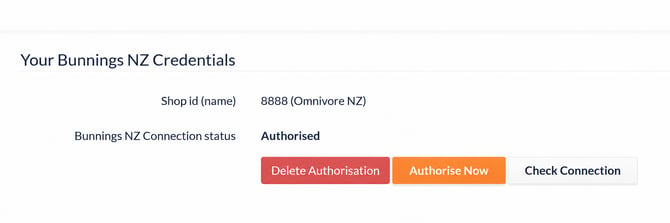
Please note there are still more settings to check, please follow this Full Setup Guide to continue with your next steps.