
If you have images in your ecommerce store that you don't want on listings on a Marketplace, you can block the image in Omnivore. The process is the same in Omnivore for all Marketplaces.
Step 1
Go to the Omnivore Dashboard from the App in your eCommerce Store.
Step 2
Find the product with the image you wish to block. Go to 'Products - Marketplace Name - All Products and search for the product.
Click the product title on the left-hand side of the table to go through to the product page where you will see the full data of that product.
Click to view the eCommerce Name tab, in our example it is Shopify.
Right-click on the image at the top that you want to block and click 'Copy Image Address' or 'Copy Image URL' depending on your browser.
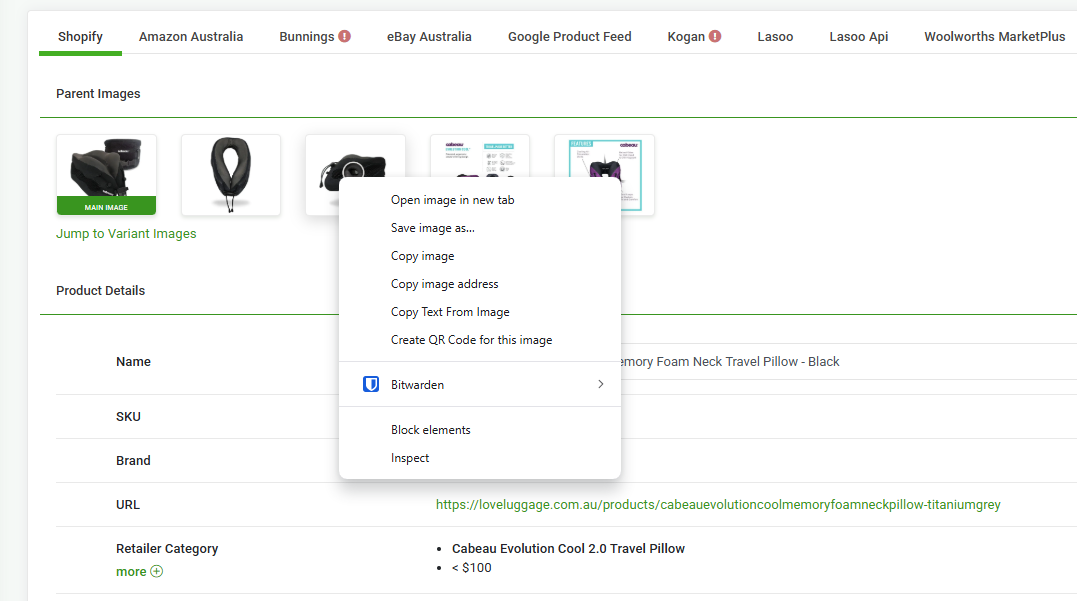
If you already have a list of the image URLs you can go straight to Step 4.
Step 3
Go to 'Settings - Marketplace Name - General'. In the field 'Exclude these images' paste the URL. You can add multiple URL's here, add each URL on a new line. Click the 'Update Settings' button at the bottom of the page to save.

Note: please ensure there are no spaces on either side of the URL.
Go to the dashboard and click 'Upload to Marketplace Name' and wait for the sync to finish.