
The setup for this function requires our support team turning on a flag so you can setup the necessary attributes. We will confirm when the flag is ON and you can proceed with the steps below.
Setup Group Variant Products
-
In Omnivore navigate to Products - Bunnings - Marketplace Attributes, search for the standalone products that you want to group together, you may need two or more browser tabs open depending on how many products you are grouping.
-
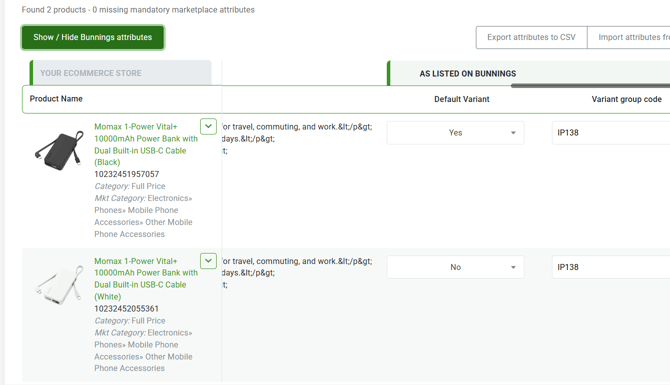
Scroll across to view the two attributes you need to complete, they are called Default Variant and Variant Group Code
-
From the products you are grouping, decide which one will be the default and select Yes, all the rest of the products must be No.
-
Add your own variant group code number, it can something of your choice in alpha or numeric or both, this is a free-text-field. NOTE: each product that will be in the group of variants must use the same code.
-
Selecting Yes and No and entering your own code in the field sets the values for those fields. This will be updated to Bunnings on the next upload and your standalone products will be grouped as a variant listing.
-
After you set this up they can not be changed or edited.
Summary and Key Takeaways
-
You only need to make this change or use this feature if Bunnings tell you to group standalone products as a variant group.
-
There can be only 1 default variant (Yes) in the grouped products and the code must be the same for each product in that group.
-
You cannot change or edit the attributes after the products have been listed on Bunnings.
- This feature is not intended for products that are already variant type in your eCommerce Store.
-
This feature is only specific to Bunning Marketplace.