
Quick Snap Shot - Listing Errors and Warnings
Use the screen capture below to navigate to Listing Errors and Warnings. From the error or warning itself you can click into it to view affected products.
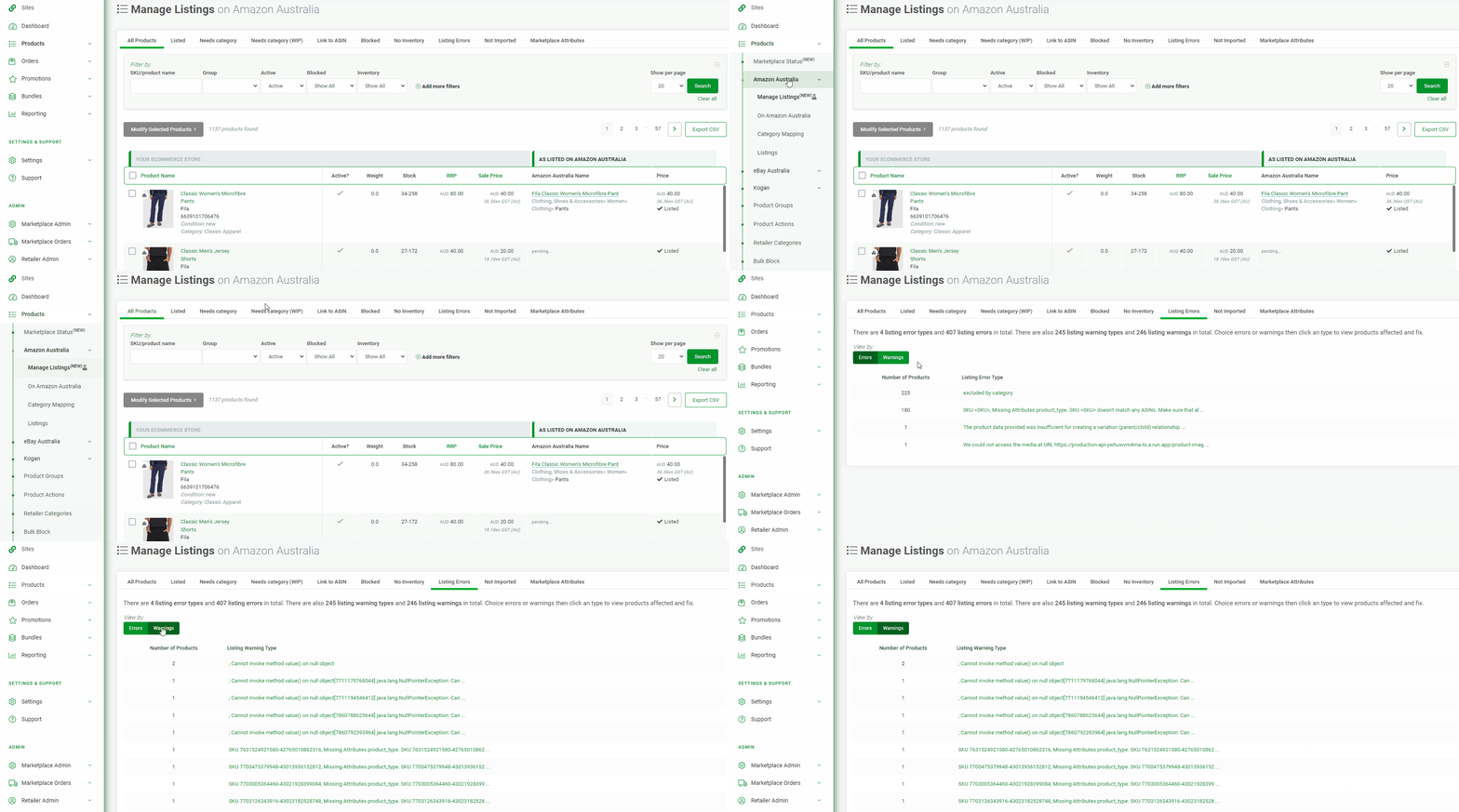
Overview Errors and Warnings
- Below is a list of common validation errors and warning with solutions from Amazon Australia.
- These listing errors and warnings do change and are updated from time to time, we are always adding new errors as they appear.
- If you have a product validation error for warning that is not on this list please let us know.
message=The attributes are invalid., severity=ERROR, attributeNames=[recommended_browse_nodes]
Error message
message=The attributes are invalid., severity=ERROR, attributeNames=[recommended_browse_nodes]
What it means
Amazon does not accept the recommended_browse_nodes attribute for the product type being submitted.
An Omnivore category usually has one product type, but it can have more than one. The attribute may not be valid for the specific product type Amazon is using.
Common causes
- The attribute is not valid for the Amazon product type
- The Omnivore category/product type mapping may be stale
- Amazon’s category requirements may have changed
- Omnivore and Amazon may disagree on whether the attribute is available for that category
What to do
- Check whether
recommended_browse_nodesappears as an available attribute for the category. - If the attribute does not appear for the category, this will probably need developer review.
- If Omnivore shows the attribute but Amazon rejects it, try a category refresh.
- If the issue continues, escalate with the product, category, retailer, and example ticket details.
Amazon Australia validation warning: [16364] - This product has other listing limitations.
Error message
Amazon Australia validation warning:
[16364] - This product has other listing limitations.
What it means
Amazon has applied a listing limitation to the product. This is usually controlled by Amazon Seller Central, not Omnivore.
Common causes
- Category approval is required
- Brand approval is required
- The product does not meet Amazon compliance requirements
- The product is subject to regulatory restrictions
- Amazon has detected a policy, safety, labelling, intellectual property, counterfeit, or prohibited product issue
What to do
- Ask the retailer to log in to Amazon Seller Central.
- Ask them to locate the notification or restriction linked to the SKU or ASIN.
- Ask them to review the specific approval, policy, or compliance details shown by Amazon.
- If Amazon requires approval or documentation, the retailer must complete that process in Seller Central.
- If Amazon gives no useful details, ask the retailer to raise the issue with Amazon Selling Partner Support.
You are receiving this error as you may be adding Offer-Listing(s) or editing a SKU not present in your catalogue or one thats been deleted.
Error message
You are receiving this error as you may be adding Offer-Listing(s) or editing a SKU not present in your catalogue or one thats been deleted. If this was a deleted SKU, wait 24 hours before resubmitting it. If you have tried to add this SKU to the Amazon catalogue before, check your data and correct any errors before resubmitting. If product is being added to a store from another one, it may require few hours for localisation before it is valid. Please check your seller account for progress or any issues.
What it means
This error is misleading. It usually does not mean the SKU is deleted or missing from the catalogue.
The key part is:
“If you have tried to add this SKU to the Amazon catalogue before, check your data and correct any errors before resubmitting.”
In plain English, this means the missing attribute warnings or other validation warnings need to be fixed first.
Common causes
- Required Amazon attributes are missing
- Other Amazon validation warnings are still unresolved
- Amazon has not yet processed the latest product upload
- The SKU was recently deleted and Amazon has not finished processing the deletion
What to do
- Check the product warnings in Omnivore.
- Fix all missing attribute warnings first.
- Resubmit or wait for the next upload to Amazon.
- If all attributes have been added, allow time for Amazon to process the update.
- Expect the product to take around 10 minutes to 4–5 hours to show for sale after all warnings are resolved.
Amazon Australia validation warning:[110002] - Unable to Retrieve Media Content for URL 'Access Denied by Server'
Error message
Amazon Australia validation warning:[110002] - Unable to Retrieve Media Content for URL 'Access Denied by Server'
What it means
This warning is only a real issue if the retailer does not already have images in Amazon.
With the new listing API, Omnivore uploads retailer images temporarily to:
https://omnivore-product-images.s3.ap-southeast-1.amazonaws.com/amazon/
Those temporary image files are deleted after a few days. This is not the same as the old listing API issue where the retailer’s website blocked Amazon from accessing image URLs.
Common causes
- The temporary Amazon S3 image has expired
- Amazon tried to fetch the temporary image after it was removed
- Product images need to be recreated for Amazon
What to do
- Check whether the product already has images showing in Amazon.
- If the product already has images in Amazon, this warning may not need action.
- If images are missing, open the product page in admin.
- Scroll to Amazon Product View/Admin only.
- Click Product images for Amazon S3.
- Click Upload All to recreate the images.
- If this keeps recurring, reference the Trello task for forcing image recreation when the warning is received.
Your product details aren't complete enough to find a matching ASIN or create a new one.
Error message
Your product details aren't complete enough to find a matching ASIN or create a new one. To fix this, verify your product identifiers (UPCs should have 12 digits, EANs 13 digits, and ISBNs 10 digits) are correct and include all required product information. You can then either search for your ASIN again or create a new one.
What it means
Amazon does not currently have enough valid product data to match the item to an existing ASIN or create a new ASIN.
This warning is often temporary if all other required attributes have already been added.
Common causes
- Required product attributes are missing
- Product identifiers are invalid or incomplete
- Amazon has not yet processed the corrected product data
- An upload still needs to run to clear the warning
What to do
- Check whether all missing attribute warnings have been fixed.
- Confirm the product identifier is valid:
- UPC should have 12 digits
- EAN should have 13 digits
- ISBN should have 10 digits
- Resubmit the product or wait for the next Amazon upload.
- If all required attributes are fixed, allow around 10 minutes to 4–5 hours for Amazon to clear the warning.
You need approval to list in this brand.
Error message
You need approval to list in this brand.
What it means
Amazon requires the retailer to have approval before listing products under that brand.
Common causes
- The retailer has not been approved to sell the brand
- The brand name in the retailer product data does not exactly match the approved Amazon brand
- A product attribute brand overlay is overriding the expected brand value
- Spelling or capitalisation does not match Amazon’s approved brand name
What to do
- Check the brand in the retailer’s product data.
- Check whether a product attribute brand overlay is being used.
- Confirm the spelling and capitalisation exactly match the retailer’s approved brand in Amazon.
- Ask the retailer to check brand approvals in Amazon Seller Central.
- If needed, ask the retailer to provide a screenshot of their brand approvals.
- If the retailer is not approved, they must request approval through Amazon Seller Central.
This product has been identified as one that is prohibited for sale or violates image guidelines.
Error message
This product has been identified as one that is prohibited for sale or violates image guidelines. We prohibit any sexual or offensive adult product or any listing(s) that may include explicit sexual imagery. For more information, please refer to Seller Central > Policies, agreements, and guidelines > Program Policies > Product guidelines.
What it means
Amazon has blocked the product or ASIN because it believes the listing is prohibited or violates image guidelines.
This can be caused by content uploaded by another retailer on the same ASIN, not necessarily by the retailer using Omnivore.
Common causes
- Amazon has blocked the ASIN
- The ASIN contains prohibited material
- The ASIN contains image content Amazon considers explicit or offensive
- Another seller’s contribution to the ASIN caused the restriction
What to do
- Check whether the product should be blocked from listing.
- Ask the retailer to review the ASIN in Amazon Seller Central.
- If the retailer believes the block is incorrect, they must raise a ticket with Amazon.
- Do not treat this as an Omnivore mapping issue unless the product data being sent from Omnivore is clearly incorrect.
The Listing data provided is different from what is already in the Amazon catalogue.
Error message
The Listing data provided is different from what is already in the Amazon catalogue. The standard product ids (such as UPC, ISBN, EAN or JAN codes) provided matches the ASIN xxxxxxxxx, but some of the listing data contradicts what is already in the Amazon catalogue.
What it means
The product identifier matches an existing Amazon ASIN, but the product data being sent does not match the data already on that ASIN.
Common causes
- The retailer’s GTIN matches an ASIN with different product data
- Brand, title, manufacturer, size, colour, or other attributes conflict with Amazon’s catalogue
- The SKU may need to be linked to the correct ASIN
What to do
- Check the ASIN linked to the SKU.
- Compare the retailer’s product data with the product data shown on Amazon.
- If the ASIN is correct, update the retailer’s values to match Amazon where appropriate.
- If the SKU is not linked to the correct ASIN, use the ASIN linking process.
- If Amazon’s catalogue data is wrong, the retailer may need to ask Amazon to update the ASIN.
You are not authorized to list products under this brand
Error message
You are not authorized to list products under this brand
What it means
Amazon requires brand approval before the retailer can list this product.
Common causes
- The retailer is not approved to sell the brand
- The product is being submitted under a restricted brand
- Brand approval has not been requested or granted in Seller Central
What to do
- Ask the retailer to log in to Amazon Seller Central.
- Go to Inventory.
- Select Add a Product.
- Search for the item they want to sell.
- Click Listing limitations apply.
- Click Request Approval.
- To check progress, return to Add a Product and open Selling application status.
You are not authorized to list products in this product line or category
Error message
You are not authorized to list products in this product line or category
What it means
Amazon requires approval before the retailer can list in this category or product line.
Common causes
- The category is gated
- The product line requires Amazon approval
- The retailer has not completed the required Amazon approval process
What to do
- Ask the retailer to check the listing limitation in Amazon Seller Central.
- Ask the retailer to request approval for the relevant category or product line.
- If Amazon provides specific requirements, the retailer must complete them directly in Seller Central.
- Resubmit the product after Amazon approval has been granted.
Merchant is not authorized to sell products under this restricted product group
Error message
Merchant is not authorized to sell products under this restricted product group
What it means
Amazon has restricted the product group. The retailer must request approval before they can sell items in that group.
Common causes
- The product group is restricted by Amazon
- The retailer does not have approval for the item
- The seller account is not authorised for that restricted product group
What to do
- Ask the retailer to contact Amazon Seller Support or request approval in Seller Central.
- In Seller Central, go to Inventory.
- Select Add a Product.
- Search for the item.
- Click Listing limitations apply.
- Click Request Approval.
- Ask the retailer to check Selling application status for the approval outcome.
Missing Attributes standard_product_id
Error message
Missing Attributes standard_product_id
What it means
Amazon requires a valid product identifier before it can match the product to an ASIN or create a listing.
Common causes
- No barcode, UPC, EAN, GTIN, ISBN, ASIN, or JAN has been provided
- A barcode is missing from one or more variants
- The barcode is not recognised by Amazon
- The barcode is not the correct registered barcode for the product
What to do
- Check whether the product and all variants have a barcode.
- Confirm the barcode is the correct registered barcode for the product.
- Ask the retailer to correct the barcode on their website or product feed.
- Resubmit the product after the barcode has been corrected.
Missing Attributes manufacturer_minimum_age
Error message
Missing Attributes manufacturer_minimum_age
What it means
Amazon requires the manufacturer_minimum_age attribute for this product or category.
Common causes
- The category requires a minimum age value
- The value has not been supplied in the retailer data
- The value has not been added as a marketplace attribute
What to do
- Go to Products.
- Open On Amazon.
- Open the Marketplace Attributes tab.
- Search for the SKU.
- Scroll across to find Manufacturer Minimum Age.
- Add the required value.
- Resubmit the product.
The SKU data provided conflicts with the Amazon catalog
Error message
The SKU data provided conflicts with the Amazon catalog
What it means
The product data being sent conflicts with Amazon’s existing catalogue data.
Example:
Merchant: '' / Amazon: '16192'
Common causes
- Amazon already has a different value for the same product identifier
- Retailer data does not match the ASIN data
- The retailer may be trying to change Amazon catalogue data through the listing feed
What to do
- Compare the retailer’s product data with the data shown on the Amazon ASIN.
- If Amazon’s data is correct, update the retailer’s product data to match.
- If the retailer believes Amazon’s data is wrong, they need to petition Amazon to change the catalogue data.
- Resubmit the product after the data is corrected.
We could not access the media at URL. A 403 HTTP status code was received.
Error message
We could not access the media at URL https://xxxx.com.au/xxx.jpg. A 403 HTTP status code was received. Ensure that the server or firewall configuration is not blocking Amazon servers from accessing the media.
What it means
Amazon could not access the product image URL. This is usually caused by the retailer’s server, firewall, image hosting, redirects, or temporary access issues.
Common causes
- The retailer’s server blocks Amazon
- The retailer’s firewall blocks Amazon
- Rate limiting is triggered when Amazon accesses many images quickly
- The image URL temporarily failed
- The website redirects the image URL
- No product image is available in Omnivore
What to do
- Ask the retailer to allow product images to be accessed without blocking or rate limiting Amazon servers.
- If this may be temporary, try re-uploading the products to Amazon from the Omnivore dashboard.
- Open the affected product in Omnivore.
- Right-click the image and open it in a new browser tab.
- Compare the image URL in the browser with the URL in the Amazon error.
- If the URLs differ, the retailer’s website is using an HTML redirect and the retailer should refer this to their developer.
- If no image is showing in Omnivore, ask the retailer to update the product images on their website.
A value is required for the "part_number" field
Error message
A value is required for the "part_number" field
What it means
Amazon requires an MPN value for this product.
Common causes
- MPN is missing from the retailer data
- The mapped category requires
part_number - The value has not been added as a marketplace attribute
What to do
- Check whether the product has an MPN.
- Ask the retailer to add the MPN to their product data.
- If needed, add the value as a marketplace attribute.
- Resubmit the product.
You cannot change the 'item_classification' for SKU
Error message
You cannot change the 'item_classification' for SKU 'XXX' by submitting a feed with a new value. To change this attribute, do the following: 1) Submit a feed to delete the existing SKU. 2) Submit a feed to recreate the SKU with the updated 'item_classification'
What it means
The product classification has changed between single variant and multi-variant, or multi-variant and single variant.
Amazon does not allow this change through a normal update feed.
Common causes
- A product changed from single-variant to multi-variant
- A product changed from multi-variant to single-variant
- The variation structure changed after the SKU was already created in Amazon
What to do
- Confirm whether the product structure changed between single and multi-variant.
- Follow the process for changing the variant structure.
- Delete the existing SKU from Amazon if required.
- Recreate the SKU with the corrected
item_classification.
Marketplace Product Variant SKUs are not unique
Error message
Marketplace Product Variant SKUs are not unique
What it means
Amazon has detected duplicate variant SKUs or non-unique variant combinations.
Common causes
- Product variants are duplicated
- Variant attributes are not unique
- Two variants share the same colour, size, or other variation combination
What to do
- Check the product variants.
- Confirm each variant SKU is unique.
- Confirm each variant attribute combination is unique.
- Fix duplicate colour, size, or variation values.
- Resubmit the product.
You may not change the brand name on this ASIN.
Error message
You may not change the brand name on this ASIN. Please use the brand name currently shown on the ASIN detail page
What it means
Amazon will not allow the brand name on the ASIN to be changed through the listing feed.
Common causes
- The retailer’s brand value does not match the ASIN
- Amazon already has a brand locked to the ASIN
- The retailer may be trying to list against the wrong ASIN
What to do
- Check the brand name currently shown on the ASIN detail page.
- If the ASIN is correct, update the retailer’s brand value to match Amazon.
- If the ASIN is wrong, link the SKU to the correct ASIN.
- If the retailer believes Amazon’s brand value is wrong, ask them to contact Amazon Seller Support and mention error code 5461.
Please provide a variation theme when creating a variation parent
Error message
Please provide a variation theme when creating a variation parent
What it means
The product is being submitted as a variation parent, but the required variation theme is missing or not configured.
Common causes
- The variation theme is not configured for the Amazon category in Omnivore
- The category does not support the variation structure being used
- Omnivore currently supports only certain variation types for Amazon
What to do
- Check whether the product is using a variation type supported by Omnivore for Amazon.
- Omnivore Amazon integration is currently only configured to support colour and size.
- If the product uses another variation type, escalate internally because that variation is not currently configured for the category in Omnivore.
UPC/EAN is too short/long
Error message
UPC/EAN is too short/long
What it means
The barcode has the wrong number of characters.
Common causes
- The UPC is missing digits
- The EAN is missing digits
- Extra characters have been included
- The wrong barcode has been supplied
What to do
- Check the UPC or EAN against the product.
- Confirm the identifier has the expected number of digits.
- Ask the retailer to correct the barcode in their product data.
- Check the GTIN if needed using the GS1 GEPIR lookup.
- Resubmit the product.
MerchantShippingGroupName field contains an invalid value
Error message
"Message/Product/DescriptionData/MerchantShippingGroupName" (XXX) field contains an invalid value
What it means
The shipping policy name being sent from Omnivore does not match the shipping template name in Amazon.
Common causes
- The shipping template name in Omnivore is incorrect
- The name does not exactly match Amazon
- Case, spacing, or punctuation differs between Omnivore and Amazon
What to do
- Check the shipping template name in Amazon Seller Central.
- Check the shipping policy name in Omnivore.
- Make the Omnivore value exactly match Amazon.
- Remember the shipping template name is case sensitive.
- Resubmit the product.
Cannot serialise to Amazon Australia feed format, error = Cannot find the Amazon product type
Error message
Cannot serialise to Amazon Australia feed format, error = Cannot find the Amazon product type
What it means
Omnivore cannot determine the Amazon product type for the mapped category.
Common causes
- The category is not yet available on Amazon Australia
- The Omnivore category is not mapped to a valid Amazon product type
- The Amazon category mapping needs review
What to do
- Check the product’s category mapping.
- Confirm whether the category is available on Amazon Australia.
- If the category is unavailable or no product type exists, escalate for category/product type review.
- Remap the product if a better Amazon category is available.
A value is required for 'department_field'
Error message
A value is required for 'department_field'
What it means
Amazon requires a department value for this product’s category or subcategory.
Common causes
- The category requires
department_field - The retailer has not supplied the value
- The value has not been added as a marketplace attribute
What to do
- Check the product category and subcategory.
- Add the required department value as a marketplace attribute.
- Resubmit the product.
A value is required in the "dvd_region" field because there are values in dependent fields
Error message
A value is required in the "dvd_region" field because there are values in dependent fields
What it means
Amazon requires the DVD region value for this category.
Common causes
- The product is listed in a DVD-related category
- Dependent fields have values, so Amazon requires
dvd_region - The retailer data does not include the DVD region
What to do
- Confirm the product is mapped to the correct category.
- If the category is correct, add the DVD region value via marketplace attributes.
- Resubmit the product.
A value is required in the "blu_ray_region" field because there are values in dependent fields
Error message
A value is required in the "blu_ray_region" field because there are values in dependent fields
What it means
Amazon requires the Blu-ray region value for this category.
Common causes
- The product is listed in a Blu-ray-related category
- Dependent fields have values, so Amazon requires
blu_ray_region - The retailer data does not include the Blu-ray region
What to do
- Confirm the product is mapped to the correct category.
- If the category is correct, add the Blu-ray region value via marketplace attributes.
- Resubmit the product.
Cannot serialise to Amazon Australia feed format, error = Failed to marshal payload
Error message
Cannot serialise to Amazon Australia feed format, error = Failed to marshal payload : The content of element 'BooksMisc' is not complete. One of '{Author, Binding}' is expected.]]
What it means
The product is mapped to a book category, but required book attributes are missing.
Common causes
- The product is incorrectly mapped to a book category
- Required book data such as Author or Binding is missing
- The category mapping is wrong
What to do
- Check whether the product is actually a book.
- If it is a book, supply the required fields such as Author and Binding.
- If it is not a book, remap it to the correct Amazon category.
- Resubmit the product.
We do not support the file type of the image uploaded
Error message
We do not support the file type of the image uploaded
What it means
Amazon does not support the image file type being submitted.
Common causes
- The product image is an unsupported file type
- GIF images are being used
- The image format is not accepted by Amazon
What to do
- Check the affected product image file type.
- Replace unsupported image formats with Amazon-supported image formats.
- Block unsupported images if needed.
- Resubmit the product.
A value is missing from one or more required columns from this group: [is_expiration_dated_product = "true"], [product_expiration_type = "Expiration Date Required"]
Error message
A value is missing from one or more required columns from this group: [is_expiration_dated_product = "true"], [product_expiration_type = "Expiration Date Required"]
What it means
Amazon expects expiration-date attributes for this product, but the required values are incomplete.
Common causes
- Amazon thinks the product is expiration dated
- Required expiration-related attributes are missing
- The product should not be treated as expiration dated
What to do
- Add a marketplace attribute for
is_expiration_dated_product. - Set the value to No.
- Resubmit the product.
Missing Attributes product_type. SKU does not match any ASINs.
Error message
Missing Attributes product_type. SKU xxxx doesn't match any ASINs. Make sure that all standard product ids (such as UPC, ISBN, EAN, or JAN codes) are correct
What it means
Amazon cannot determine the correct product type and cannot match the SKU to an ASIN.
Common causes
- The product category is not mapped to an Amazon category
- GTIN data is missing or invalid
- Brand data is incorrect
- The product type cannot be derived from the category
What to do
- Check the product category mapping.
- Confirm the product is mapped to a valid Amazon category.
- Check the GTIN data.
- Check the brand value.
- Correct any invalid category, GTIN, or brand data.
- Resubmit the product.
Missing Attributes standard_product_id. SKU does not match any ASINs.
Error message
Missing Attributes standard_product_id. SKU xxxx-xx doesn't match any ASINs. Make sure that all standard product ids (such as UPC, ISBN, EAN, or JAN codes) are correct.
What it means
Amazon cannot match the product to an existing ASIN or create a new one because the standard product identifier is missing or invalid.
Common causes
- No barcode or GTIN has been provided
- The barcode is invalid
- The brand is incorrect
- The category is incorrect
- Amazon cannot associate the offer with an existing catalogue item
What to do
- Check whether the product has a valid barcode or GTIN.
- Check the brand value.
- Check the category mapping.
- Validate the GTIN if needed using the GS1 GEPIR lookup.
- Correct the product data.
- Resubmit the product.
SKU is associated to more than 1 GCID
Error message
SKU xxx-xxx is associated to more than 1 GCID, which is not allowed. Please send a delete feed for this SKU and all other SKUs with the same attribute values [merchant_suggested_asin], and then resubmit the SKUs
What it means
Amazon has multiple ASINs using the same UPC data. Amazon will not allow the SKU to remain associated with more than one GCID.
Common causes
- Duplicate ASINs exist in Amazon for the same UPC
- The product has been linked to the wrong ASIN
- Amazon’s catalogue contains duplicated product identifier data
What to do
- Check the possible ASIN matches for the product.
- Identify the correct ASIN.
- Manually link the product to the correct ASIN using the Link to ASIN feature.
- Resubmit the product.
The SKU data provided is different from what's already in the Amazon catalog.
Error message
The SKU data provided is different from what's already in the Amazon catalog. The standard_product_id data provided matches ASIN xxxxxxxxxx, but the following data is different from what's already in the Amazon catalog
What it means
The GTIN matches an Amazon ASIN, but the product data being submitted does not match Amazon’s catalogue data.
Common causes
- The retailer’s GTIN belongs to a different product
- Product data differs from Amazon’s ASIN data
- Brand, title, variant, or other identifying data is inconsistent
What to do
- Review the GTIN information.
- Check the ASIN matching screens.
- Confirm whether the data belongs to the same product.
- If the ASIN is correct, update the retailer data to match Amazon where appropriate.
- If the ASIN is wrong, link to the correct ASIN.
- Resubmit the product.
SKU does not match any ASIN and the product data provided is not eligible for ASIN creation.
Error message
SKU does not match any ASIN and the product data provided is not eligible for ASIN creation.
Along with:
You are using UPCs, EANs, ISBNs, ASINs, or JAN codes that do not match the products you are trying to list. Using incorrect UPCs, EANs, ISBNs, ASINs or JAN codes is prohibited and it can result in your ASIN creation privileges being suspended or permanently removed. Please ensure you are always using the appropriate UPC, EAN, ISBN, ASIN or JAN code when listing a product. If you have reached this message in error, please contact Seller Support using the following link: https://sellercentral.amazon.com.au/hz/contact-us. For more information, refer to the ASIN Creation Policy Help Page - https://sellercentral.amazon.com.au/gp/help/201844590
What it means
Amazon believes the product identifier does not match the product being listed. This usually points to bad GTIN information.
Common causes
- Incorrect UPC, EAN, ISBN, ASIN, or JAN
- GTIN belongs to a different product
- Brand and GTIN do not align
- Amazon has restricted ASIN creation due to identifier issues
What to do
- Check the GTIN information.
- Confirm the identifier belongs to the product being listed.
- Check the brand value against the registered GTIN data.
- Correct the product identifier or brand if needed.
- Resubmit the product.
- If the retailer believes Amazon is wrong, ask them to contact Amazon Seller Support.
A value is required for the "is_expiration_dated_product" field
Error message
A value is required for the "is_expiration_dated_product" field
What it means
Amazon requires the is_expiration_dated_product attribute for this category.
Common causes
- The category requires the expiration-dated product attribute
- Omnivore does not currently auto-populate this category
- The value has not been supplied in marketplace attributes
What to do
- Confirm the product category.
- Submit a support ticket with the category.
- Ask for the category to be added to the list of auto-populated categories that use this attribute.
- Resubmit the product after the attribute issue is resolved.
We have temporarily removed your ability to submit listings
Error message
We have temporarily removed your ability to submit listings (creating new offers or new ASINs) because an unusually high number of listings have been created from your account.
What it means
Amazon has temporarily restricted the seller account from submitting listings because of listing volume.
Common causes
- The seller account created an unusually high number of listings
- Amazon has applied a temporary listing restriction
What to do
- Advise the retailer that this restriction is controlled by Amazon.
- Ask the retailer to check Seller Central for account notifications.
- Wait for the restriction to clear.
- If it does not clear, the retailer needs to contact Amazon Selling Partner Support.
The following attributes are missing for SKU: [manufacturer]
Error message
The following attributes are missing for SKU: [XXXXXXXXX]: [manufacturer]
What it means
Amazon requires a manufacturer value.
Omnivore automatically sends the product brand name in the manufacturer field, so this often means the existing ASIN has a missing or different manufacturer value.
Common causes
- Existing ASIN has an empty manufacturer value
- Existing ASIN has a different manufacturer value
- The ASIN may have originally been created with incorrect data
What to do
- Check the brand/manufacturer data for the product.
- Confirm whether the product is linked to an existing ASIN.
- If the ASIN has missing or incorrect manufacturer data, ask the retailer to raise a support ticket with Amazon.
- The retailer should ask Amazon to add or update the manufacturer value.
Please indicate that the item is a variation parent before setting up variation relationships.
Error message
Please indicate that the item is a variation parent before setting up variation relationships.
Along with:
You may not create new variation relationships for this Brand. You are free to add offers to any existing ASIN for this Brand.
What it means
Amazon is rejecting the creation of new variation relationships for this brand.
Common causes
- Amazon does not allow the retailer to create new variation relationships for the brand
- The product is not correctly identified as a variation parent
- Amazon brand restrictions are preventing variation creation
What to do
- Check whether existing ASINs already exist for the product and variants.
- Check whether the product can be linked to existing ASINs instead of creating new variation relationships.
- If no solution is available, submit a support ticket for review.
- Ask the retailer to contact Amazon if the restriction is controlled by brand approval or catalogue policy.
Amazon Australia validation error: merchant_suggested_asin is invalid
Error message
Amazon Australia validation error: SKU does not match any ASIN and contains invalid values for attributes required for creation of a new ASIN. New ASIN creation requires the following attributes, for which this SKU provided invalid attribute value(s): merchant_suggested_asin
What it means
The ASIN specified in the linking screen is no longer valid on Amazon.
This can happen when previous GCID errors caused a manual ASIN link in Omnivore, but Amazon later cleaned up duplicate ASINs and the linked ASIN no longer exists.
Common causes
- The manually linked ASIN is no longer active
- Amazon removed or merged duplicate ASINs
- Omnivore is linking to an ASIN that no longer exists
What to do
- Check the ASIN currently linked to the SKU.
- Search Amazon for the remaining active ASIN.
- Remove the invalid ASIN link.
- Relink the SKU to the active ASIN in Omnivore.
- Resubmit the product.
Please review your selling price and maximum price
Error message
Please review your selling price and maximum price and ensure that your maximum price is greater than or equal to your selling price
What it means
Amazon has flagged the listing because the selling price is higher than the maximum price set in Seller Central.
Common causes
- Maximum price in Seller Central is lower than the current selling price
- Retailer pricing changed but Amazon maximum price settings were not updated
- Amazon pricing protection has blocked the listing
What to do
- Ask the retailer to check the SKU price in Amazon Seller Central.
- Ask them to check the maximum price value.
- Ensure the maximum price is greater than or equal to the selling price.
- Resubmit the product after the pricing settings are corrected.
The MAIN image that you have submitted shows a product that is different from the product represented by the ASIN's existing MAIN image.
Error message
The MAIN image that you have submitted shows a product that is different from the product represented by the ASIN's existing MAIN image.
To resolve this problem, remove or update your contribution's MAIN image so that it shows the correct product, or update your contribution's identifying information (e.g. UPC, ASIN) so that it corresponds to the product shown in your MAIN image .; SKU
What it means
Amazon believes the main image being submitted does not match the ASIN’s existing main image.
Common causes
- The SKU is linked to the wrong ASIN
- The retailer’s main image is for a different product
- The UPC or ASIN points to a different Amazon catalogue item
- Amazon’s existing ASIN image may be wrong
What to do
- Compare the retailer’s product image with the Amazon ASIN image.
- Check whether the SKU is linked to the correct ASIN.
- Check the UPC or product identifier.
- If the ASIN is wrong, update the ASIN link.
- If the product data is correct but Amazon’s image is wrong, the retailer may need to raise the issue with Amazon.
- Resubmit the product after the image or identifier issue is corrected.
Unable to list any product items (check warnings)
Error message
Unable to list any product items (check warnings)
What it means
The product cannot list because all variants likely have issues.
This often appears as a yellow error message. The useful details are usually in the blue warning messages underneath.
Common causes
- Every variant has a warning or validation issue
- Required data is missing across variants
- Another warning in this article is preventing the product from listing
What to do
- Open the product in Omnivore.
- Scroll down and check the blue warning messages.
- Review each variant.
- Match the warning message to the relevant error in this article.
- Fix the underlying warning.
- Resubmit the product.
Invalid ProductType value for SKU
Error message
Invalid ProductType value for SKU: []
What it means
Amazon does not accept the product type value being submitted for the SKU.
Common causes
- Category mapping is incorrect
- Product type is invalid for Amazon
- Amazon no longer accepts the submitted product type
What to do
- Check the product’s Amazon category mapping.
- Confirm the mapped product type is valid for Amazon.
- Refer to Amazon error code 8101 if further Amazon-specific details are needed.
- Remap the product if required.
- Resubmit the product.
You may not create new ASINs for the brand
Error message
You may not create new ASINs for the brand .
What it means
Amazon does not allow the retailer to create new ASINs for that brand.
Common causes
- The brand is restricted
- The retailer can only sell existing ASINs for that brand
- Amazon requires the retailer to request permission to create a new ASIN
What to do
- Ask the retailer to check whether an existing ASIN already exists.
- If an ASIN exists, link the product to the existing ASIN.
- If the retailer believes a new ASIN should be created, ask them to use the product-specific URL in their Amazon error message and complete Amazon’s form.
- Resubmit after Amazon confirms approval or after linking to an existing ASIN.
Amazon Validation Error: These products require a change to Omnivore for them to list on Amazon.
Error message
Amazon Validation Error: These products require a change to Omnivore for them to list on Amazon. Please contact the Support Team for further assistance.
What it means
The product needs an Omnivore-side change before it can list on Amazon.
Common causes
- Category or attribute support needs review
- Product data cannot be resolved through normal retailer action
- An Omnivore configuration change is required
What to do
- Ask the retailer to raise a support ticket.
- Request a direct link to the product in Omnivore.
- If no direct link is available, request:
- Product name
- SKU
- Brand
- Retailer
- Amazon marketplace
- Escalate internally for review.
Please check that this product is mapped to the correct Amazon category
Error message
Please check that this product is mapped to the correct Amazon category then check the Amazon marketplace attribute requirements for this product.
What it means
The product may be mapped to the wrong Amazon category, or the mapped category has required attributes that are missing.
Common causes
- Incorrect Amazon category mapping
- Missing required marketplace attributes
- Product does not fit the selected Amazon category
What to do
- Check the product’s Amazon category mapping.
- Confirm the selected category is correct for the product.
- Check the required Amazon marketplace attributes for that category.
- Add any missing required attributes.
- If the category is wrong, remap the product.
- Resubmit the product.
Your seller account is not approved to offer seller-fulfilled products in this category at this time
Error message
Your seller account is not approved to offer seller-fulfilled products in this category at this time
Error 4400
What it means
The seller may only be authorised to sell the product using Amazon Fulfilment Network, not Merchant Fulfilment Network.
If the SKU is already listed as AFN and the offer is live, this error can be ignored. If the SKU is AFN and not live, the retailer should contact Amazon Selling Partner Support.
Common causes
- Amazon has restricted the seller to AFN
- Seller-fulfilled offers have been deactivated
- A policy violation, seasonal restriction, or customer complaint has affected fulfilment permissions
- The category does not allow the retailer to offer MFN products
What to do
- Ask the retailer to check whether the offer is using AFN or MFN.
- If the offer is AFN and live, no action is needed.
- If the offer is AFN but not live, ask the retailer to contact Amazon Selling Partner Support.
- If the retailer wants to list using MFN, ask them to check Performance Notifications in Seller Central.
- Ask them to go to Performance > Account Health.
- If Account Health says seller-fulfilled offers have been deactivated, the retailer must click Reactivate and submit a plan of action or appeal to Amazon.
Amazon Australia validation warning: SKU does not match any ASIN and the product data provided is not eligible for ASIN creation.
Error message
Amazon Australia validation warning:
SKU does not match any ASIN and the product data provided is not eligible for ASIN creation. Please check 1) your UPC/EAN/GTIN is registered in the G1 tool or 2) ensure brand name used to list the product is the exact brand name or affiliated with the UPC/EAN/GTIN. If these steps did not work please log into your account and search error code 8566 for further information
What it means
Amazon believes the UPC, EAN, or GTIN does not match the brand being used to list the product.
For example, the UPC may be registered to a brand called Big Dog, but the product is being listed with the brand name Big Dogs Bark. Amazon expects the brand and product identifier to align.
Common causes
- UPC, EAN, or GTIN is not registered correctly
- Brand name does not exactly match the registered product identifier
- Brand name is not affiliated with the UPC, EAN, or GTIN
- Amazon will not allow ASIN creation because the identifier data does not match
What to do
- Check the UPC, EAN, or GTIN.
- Confirm the identifier is registered in the GS1 tool.
- Check the exact brand name registered against the identifier.
- Update the product brand to match the registered brand if appropriate.
- Ask the retailer to search error code 8566 in their Amazon Seller Central account for further Amazon-specific guidance.
- Resubmit the product after the identifier or brand data is corrected.
The SKU was submitted as a variation Child but matches to an ASIN which is a variation parent
Error message
The SKU [ ${sku}] was submitted as a variation Child but matches to ASIN [ ${item_id}], which is a variation parent
What it means
The variation SKU has been incorrectly mapped to a parent ASIN.
A child SKU cannot be linked to an ASIN that Amazon identifies as a variation parent.
Common causes
- The child SKU was linked to the parent ASIN
- The ASIN mapping is incorrect
- The variation relationship in Omnivore does not match Amazon’s ASIN structure
What to do
- Open the product in Omnivore.
- Check the ASIN connected to the variation.
- Delete the ASIN connected to the variations.
- Save the product.
- Link the variation SKU to the correct child ASIN if available.
- Resubmit the product.