
Not all marketplaces support bundled or bulk-buy products.
Currently, only the marketplaces listed below accept bundle listings from Omnivore. If a marketplace is not listed, it means bundles are not supported on that platform via Omnivore.
Bulk Bundle Updates with CSV Uploads
If you need to create or update a large number of bundles regularly, it's possible to do so via a bulk upload CSV file.
Two types of bundles are supported therefore, the data requirements are different for each:
- Bulk-buy: this is a single SKU multi-quantity bundle and is often used to sell a bulk number of a low-value product, e.g. Pencil x 6.
- Bundle: this bundle contains multiple SKUs and has an empty bulk buy quantity field, e.g. Table + Chair. If you want to sell a table with four chairs, the chair SKU would need to be included 4 times
Step by step guide:
1. Navigate to Bundles in the left-hand menu
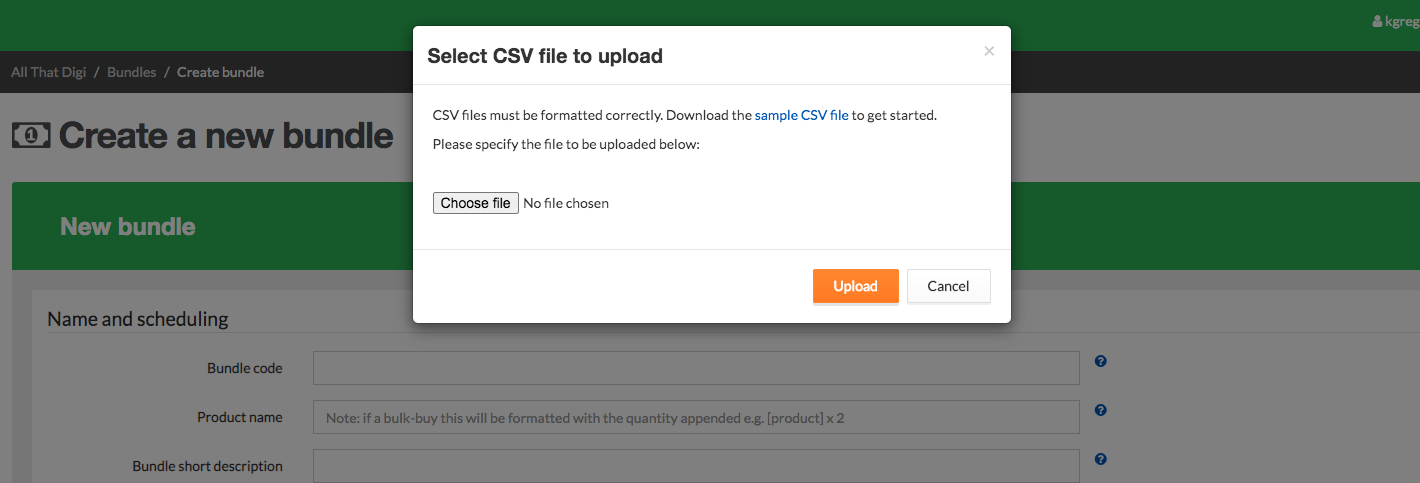
2. Select Create New Bundle, click the top right-hand corner and click on the button Create or Update via CSV.
3. The dialog box contains a link to the CSV file format. The file contains the following template for uploading bundles, see bottom screen capture.
4. Get the sample file and open it, Complete all fields, if some fields are left blank, then the system will attempt to get the data from the underlying products in the bundle.
5 The CSV file will look like this example, clear the sample data and insert your data as per your bundle.

6. When you have completed the Bulk CSV with your data click the Create or Update via CSV button again and Choose file to import your saved and adjusted CSV.
7. Consider just doing one Bundles first in the CSV if it is your first time at doing this.
8. After you import your CSV the bundles will appear on the All Bundles page.
9. Search using the Bundles SKU that Omnivore creates to find the bundle in Omnivore.
10. The new bundles will be uploaded to the marketplace in the next upload sync or if you click Upload to Marketplace.
- TITLE = Bundle Code and Product Name fields. Note that this field will be taken from the first product in the SKU list if missing. It is a requirement (to allow us and the marketplaces to distinguish between the singular product and the bulk buy bundled product) that the quantity within the bundle is appended to the bundled product name, e.g Pencil x 6
- DESCRIPTION = Short and Detailed description of the bundle, or if missing, the description of the first SKU
- WEIGHT = weight of the entire bundle. May be left blank and will be assigned the weight of the first SKU
- BUNDLE PRICE = price the bundle will be sold at. Note that an order containing the bundled product will be unbundled into line items containing the underlying products and the sale price will be pro-rated across line items based on their relative sale prices. If omitted, the price will be the sum of the underlying product prices
- BULK BUY QUANTITY = only fill in if SKUList is a single SKU, to define a bulk buy
- SKULIST = list of SKUs in the bundle and must be separated by a space
- IMAGEURL = hero image for the bundle, or will be generated from underlying products
- RRP = if not blank, the Recommended Retail Price of the bundle