
If product prices imported from BigCommerce into Omnivore are incorrect because GST has been included or excluded unexpectedly, check the tax configuration in your BigCommerce store.
Your BigCommerce settings determine whether product prices are entered with or without tax and which tax rate applies to each product.
Check Your BigCommerce GST Settings
If the products you sell include GST, make sure your BigCommerce tax settings reflect how you enter your product prices.
Check whether your product prices are configured as:
- Including tax – the price entered in BigCommerce already includes GST.
- Excluding tax – GST is added to the price entered in BigCommerce.
Make sure the option you use matches the way your product prices are maintained in BigCommerce.
Please check out the Bigcommerce documentation for more info.
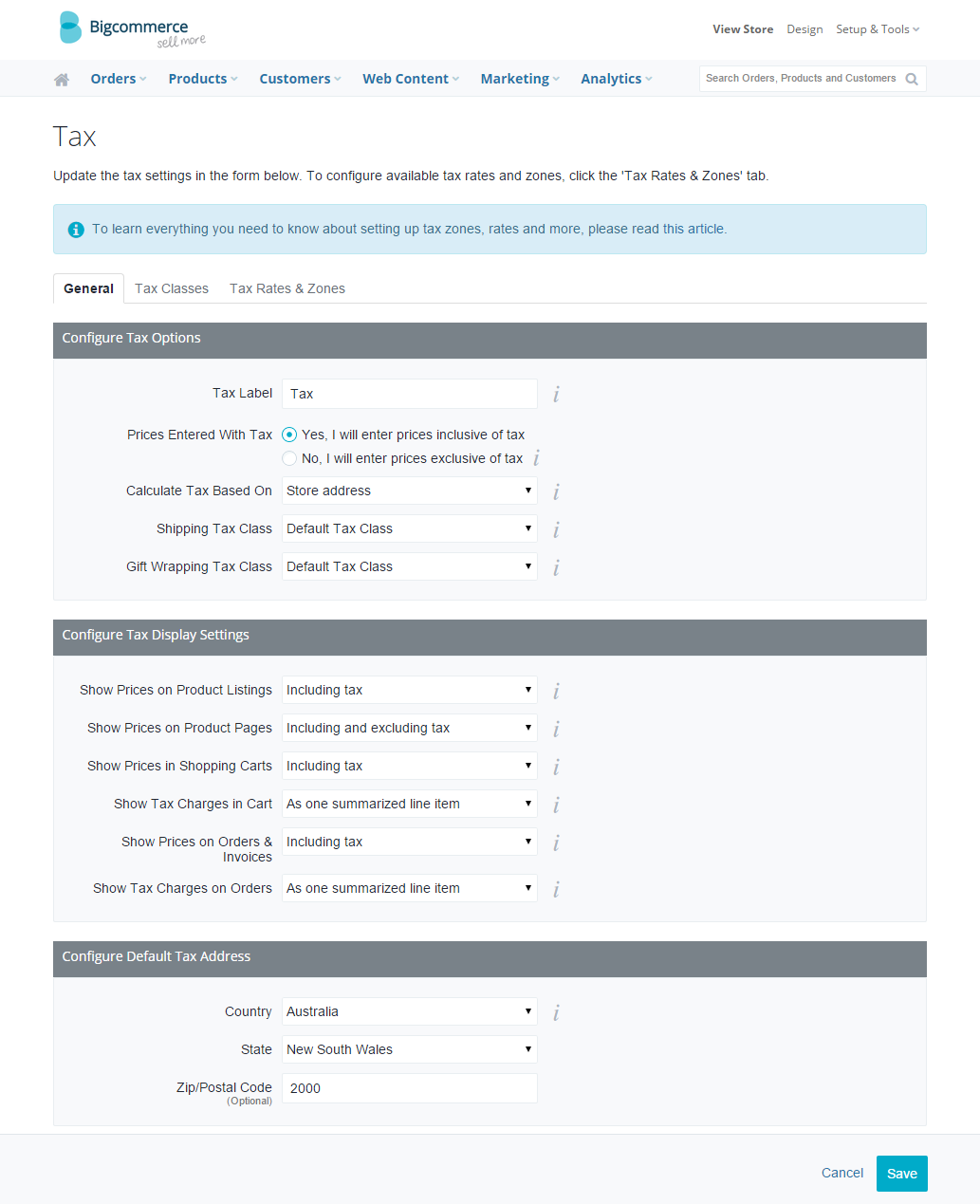 Example: BigCommerce tax settings showing prices entered inclusive of tax.
Also check that the correct tax zone and GST rate are configured for your Australian customers.
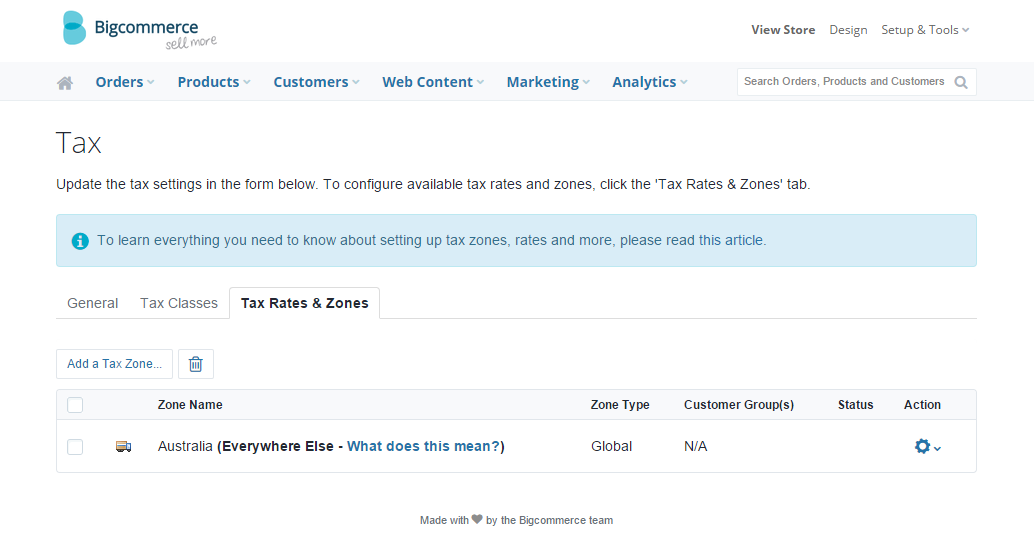 Example: Australia tax zone configured in BigCommerce.
Check the tax rates within the zone and confirm that GST is configured correctly.
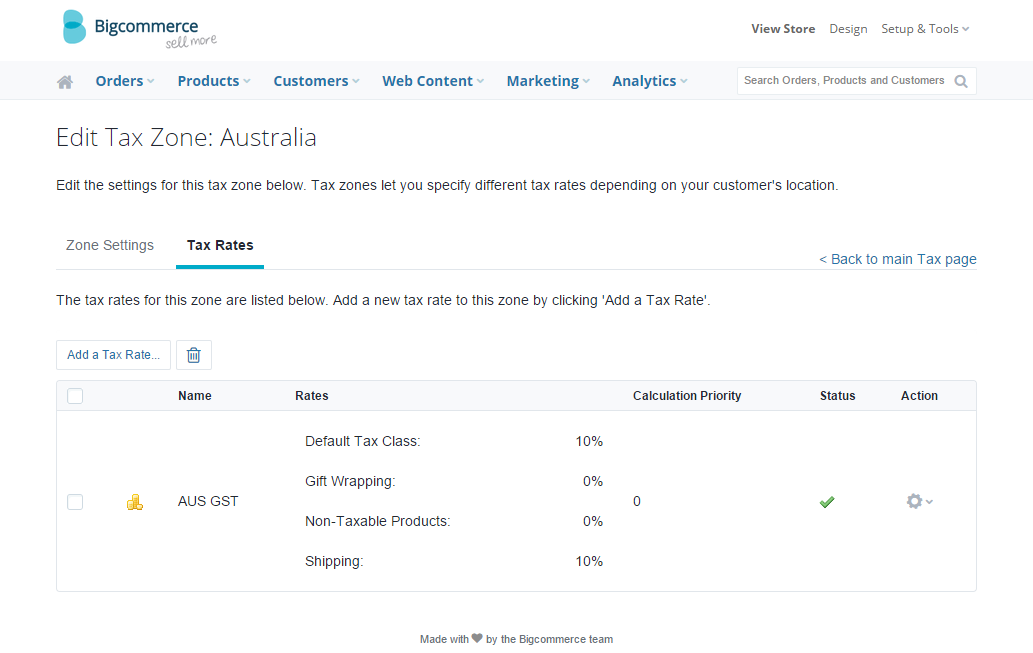
Example: GST configured at 10% with Non-Taxable Products set to 0%.
After checking these settings, review an affected product in BigCommerce and confirm that its tax-inclusive and tax-exclusive prices are correct.
Configure Tax-Free Products
If you sell products that should not have GST applied, they need to use a non-taxable tax class in BigCommerce.
For tax-free products:
- Enter the product price exclusive of tax.
- Make sure you have a Non-Taxable Products tax rate configured with a value of 0%.
- Open the affected product in BigCommerce.
- Set the product's Tax Class to Non-Taxable Products.
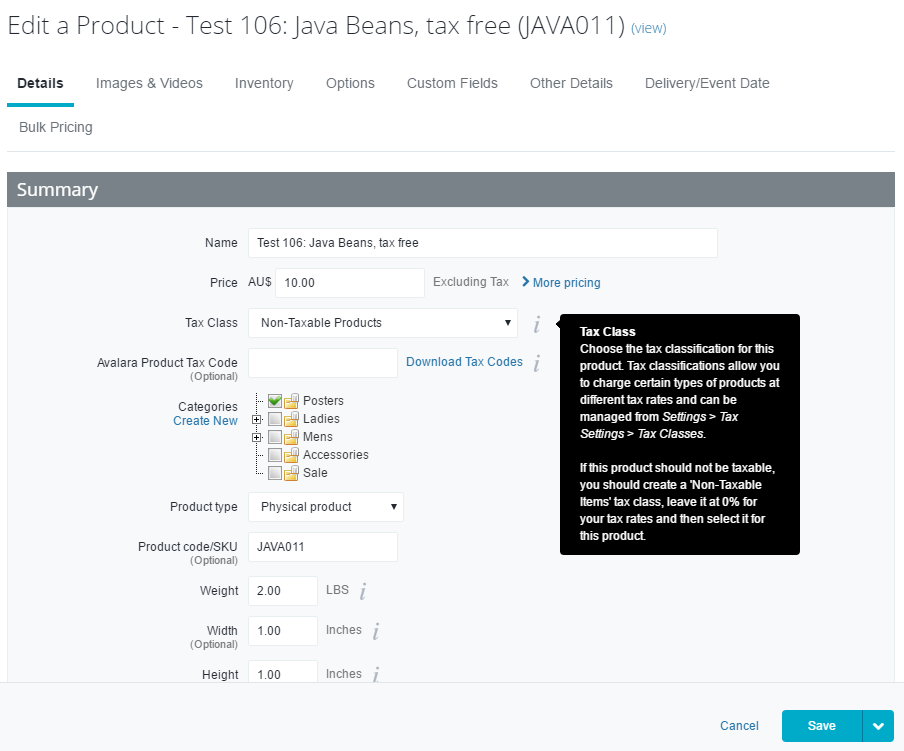 Example: A tax-free product using the Non-Taxable Products tax class.
BigCommerce provides the following guidance for the Tax Class field:
If this product should not be taxable, create a non-taxable tax class, leave it at 0% for your tax rates and select it for the product.
Check the Product Price
After updating your tax settings:
- Check the product in BigCommerce and confirm that the price and GST treatment are correct.
- Check the corresponding product in Omnivore.
- Confirm that the imported product price now reflects the expected GST treatment.