
It is possible to apply a holiday mode status to your Woolworth Everyday Marketplace Integration.
Both systems and teams (Woolworths and Omnivore) are involved to complete this process.
How To
- Reach out to your Woolworths Account Manager.
- Provide the details of the holiday mode requirement, eg start date and end date.
- The Woolworths team will follow their guidelines to set your listings and account to the relevant holiday mode status.
- Once they confirm this is done, you will need to pause your Woolworths Everyday Marketplace Integration in Omnivore.
- Go to Settings - Woolworths Everyday Marketplace - General, scroll down and click Pause.
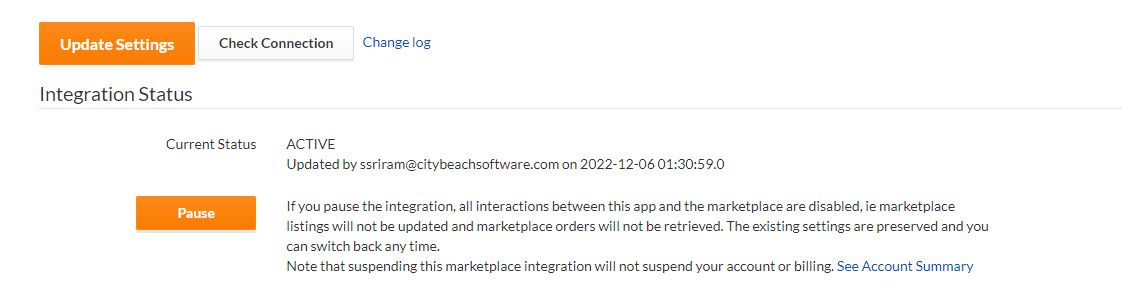
- Click Update Settings.
- This now sets your Woolworths integration to paused.
- If you use Omnivore and your account only has Woolworths Everyday Marketplace with no other marketplaces you can Suspend your entire account under Settings - Account Summary.
Turn Off Holiday Mode
- Lodge a support ticket to Omnivore and cc your Woolworths Account Manager.
- Confirm that you are ready for your account / integration to be 'Unpaused and Active' again.
- Between the two teams we will apply the necessary steps to resume the integration and set your Woolworths Account to sell again.