
If you're selling products on the Baby Bunting Marketplace that require a size chart (e.g., clothing, footwear), you must include a size chart image with your listing. In Omnivore, you apply this via a product action.
Size Chart Image Requirements
-
File type must be .JPG or .PNG.
-
The image must be publicly accessible (hosted at a URL that does not require a login) so Baby Bunting can fetch it
-
The chart should be clearly viewable at standard zoom-avoid needing to enlarge or manipulate the image significantly.
-
Recommended: follow the size-chart specification PDF attached at the bottom of this FAQ.
How to Add the Size Chart in Omnivore
- Log in to your Omnivore dashboard.
- Create a Product Group for the items needing the size chart:
-
Go to Products > Product Groups.
-
Click Add Product Group, name it (e.g., "Size Chart - Baby Shoes"), and select relevant SKUs.
-
For more information on how to create Product Groups see here.
-
- Navigate to Products > Product Actions.
-
Click Create Size Chart
-
Select the Baby Bunting marketplace.
-
Choose the product group you created.
-
Enter the publicly-accessible URL of the size-chart image (ending in .jpg or .png).
-
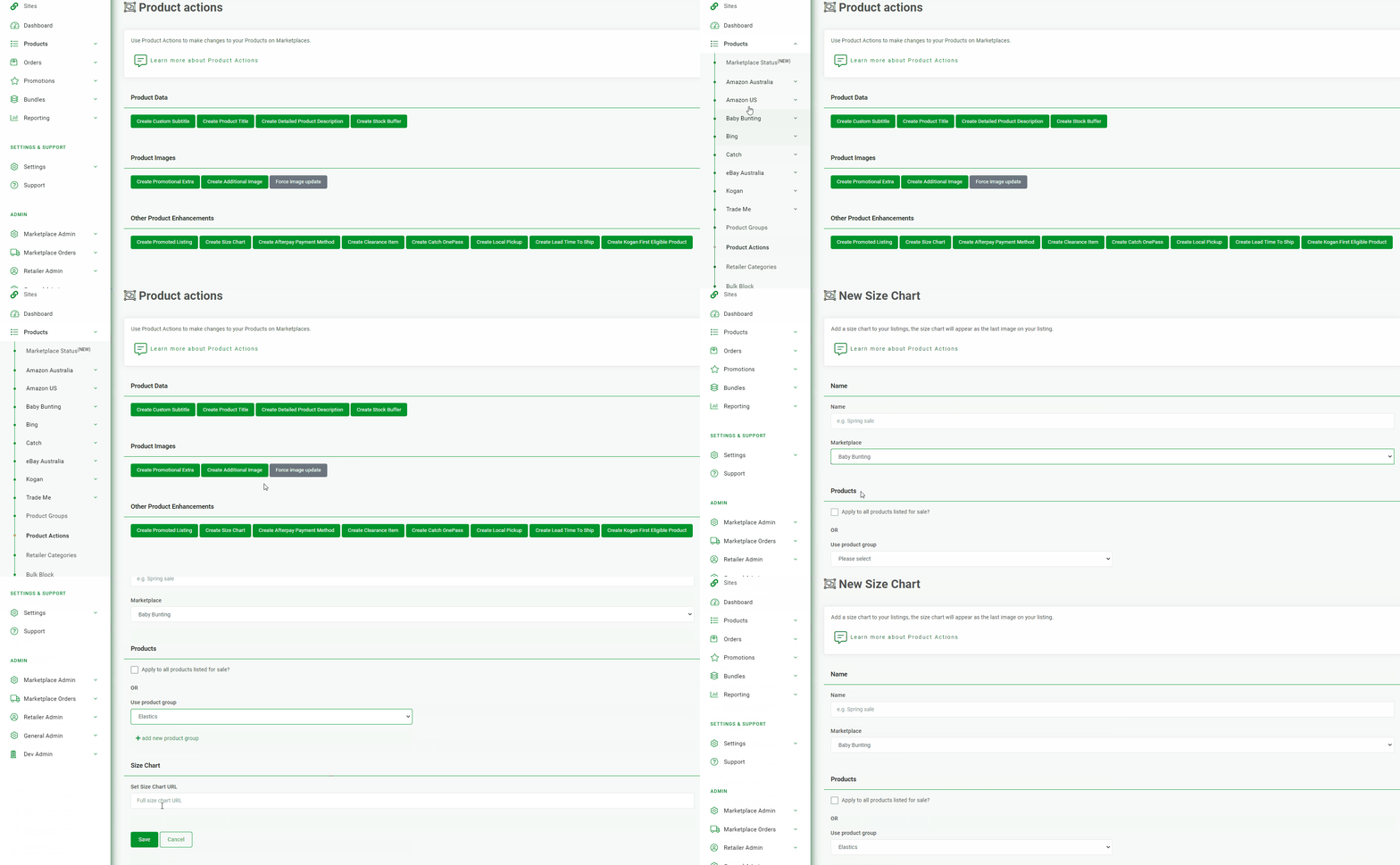
4. Click Save.
5. After saving, the size chart will appear on the Product Actions page. See below for an example:
6. Go to the Omnivore Dashboard and click Upload to Baby Bunting to send the update.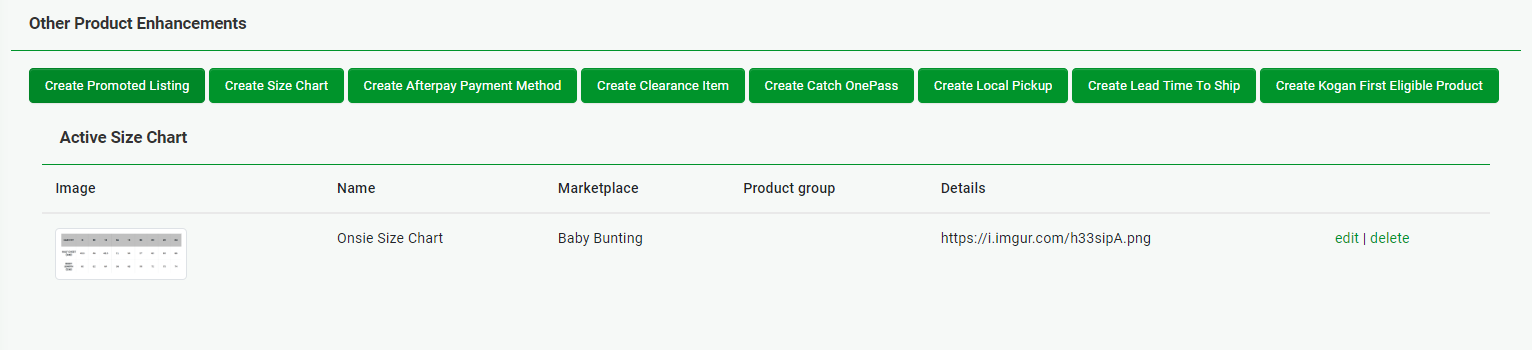 Baby Bunting Marketplace Content Guidelines (PDF)