
The Woolworths Marketplace requires sellers to supply attributes for products and listings. When using Omnivore as a listing tool there are steps you will need to follow in order to add these attribute values to your products.
You will know if you need to add attributes because the products will be in Omnivore under that Listing Errors Section. It will have an error similar to this: 'Bottle Size option value not found' Or validation error = Colour option value not found; with a fix now link.
NOTE: Specific to Woolworths Everyday Marketplace.
Attribute values are specific to the Marketplace itself. There is no free text allowed. The values will be in the drop down fields that will appear when you select the attributes in Omnivore.
Mapping to Marketplace Attributes
- Under the Listing Errors fix now section click the error that specifies a missing attribute value, this will take you the full list of products with this error.
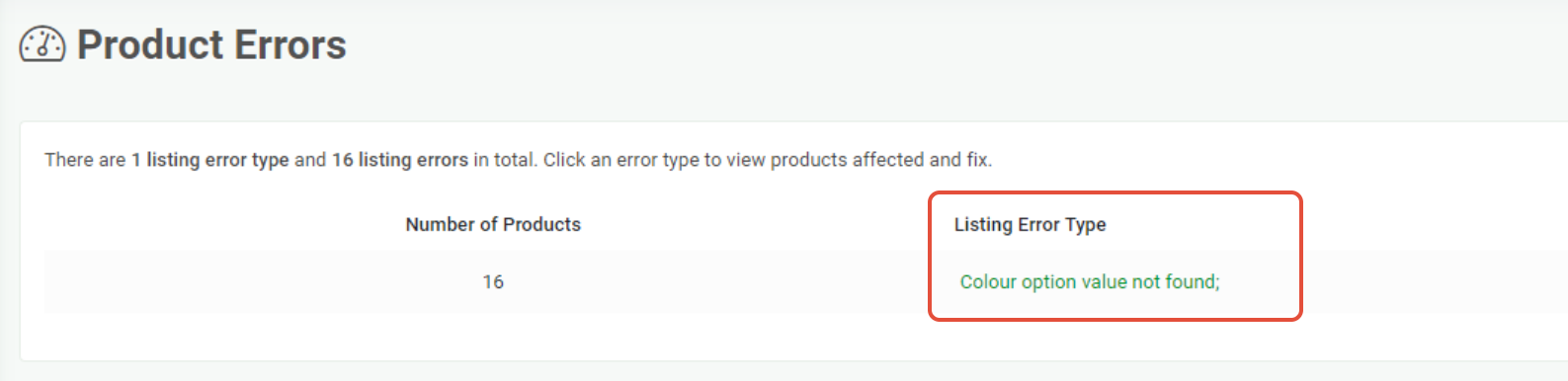
- Click into a product from that list that has this error, stay on the product page. Depending if it is colour or size check what the colours and sizes are for this product. You may need to copy a value so you can paste it on the next screen. The values must be exact.
- To map the missing colour or size for that product click the fix mappings error at the top of the page.

- On this page find what needs to be mapped, we are doing Colour on this example and we are mapping Platinum. Add Platinum on the left and select the corresponding marketplace colour on the left drop down, we have mapped it to Silver.
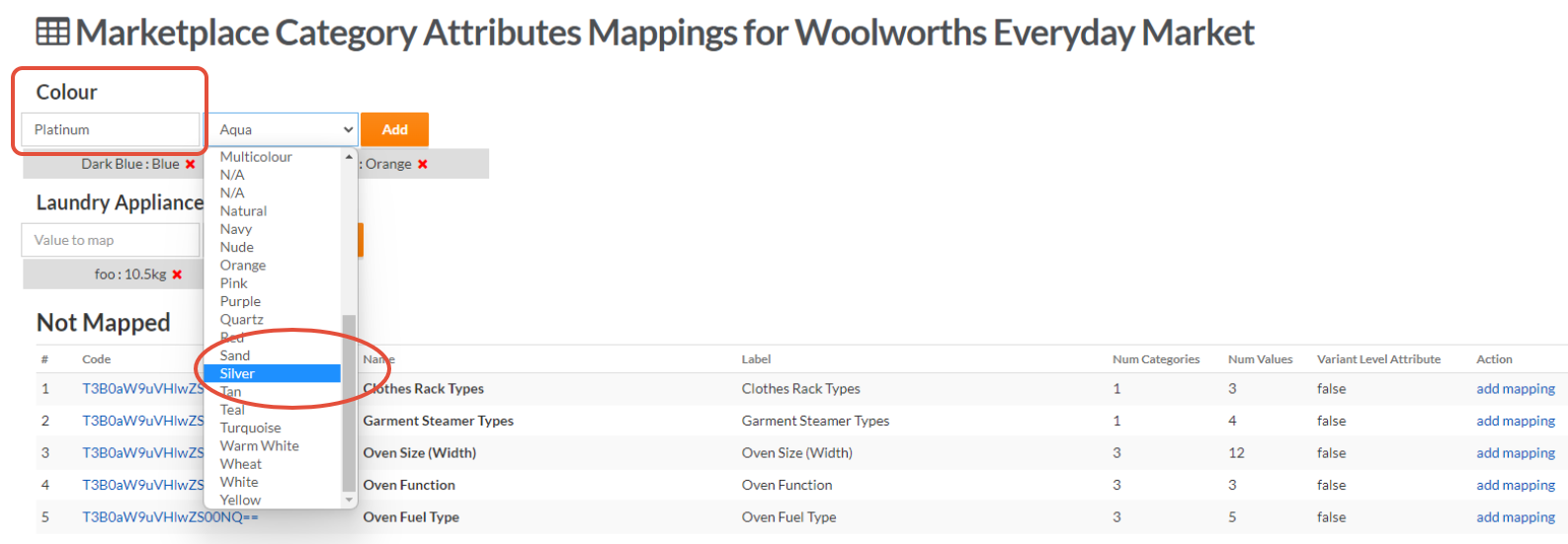
- Once selected click Add, it will then be added as Mapped. If you added the wrong one just click the red cross to remove and start again.

- This will be applied in the next upload to the marketplace. In this case because Platinum is now mapped to the colour Silver any of the products that have Platinum as a colour will also be mapped to Silver.
- Return to steps 1-3 again to find the other products with this error, you may need to check the colours so you can map them the same way. Or you may know the colours that need mapping from looking at them in the list.
- Either way you will need to know the colours you have so it can be matched and mapped to a marketplace colour using these steps.
- If the attribute type that you need to add is not in the Upper Screen section you can click add mapping from the bottom section. In this example we are adding 'Luggage. You will need to find it on this page (use CTRL F) to search.
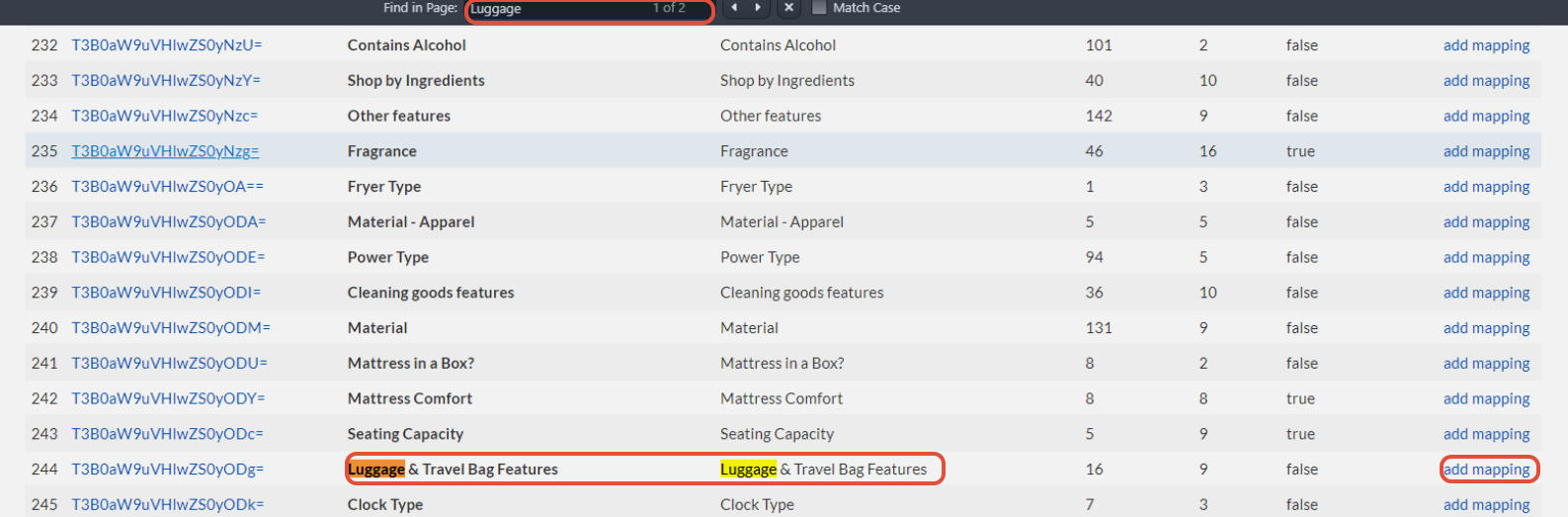
- Once you click add mapping it will appear up the top and be available to map from.
Attribute Mapping Alternative Process
- Log in to Omnivore and navigate to Products, On Woolworths Everyday Marketplace, then click the Marketplace Attribute Tab. After you click this tab please note the page can take several seconds to load due to the content/data type.
- On this page you can see two buttons that say Products or Categories; you can add Attributes at the product level using the input text or drop down options on this page, note you will need to scroll left to right to see all of the fields. See below.
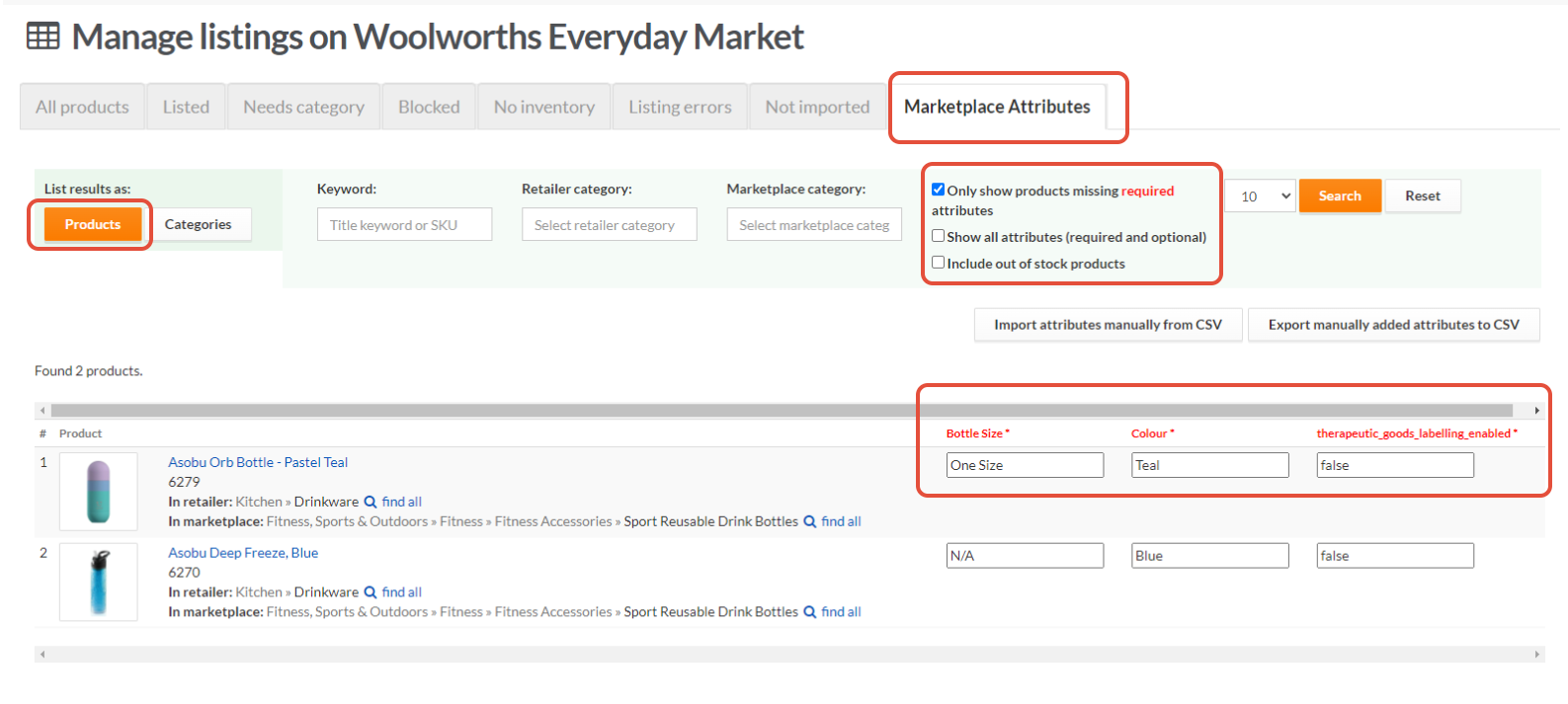
- Or, you can assign Attributes to products that are in a certain Marketplace Category. To use this method you toggle using the Categories button and then click on bulk map.
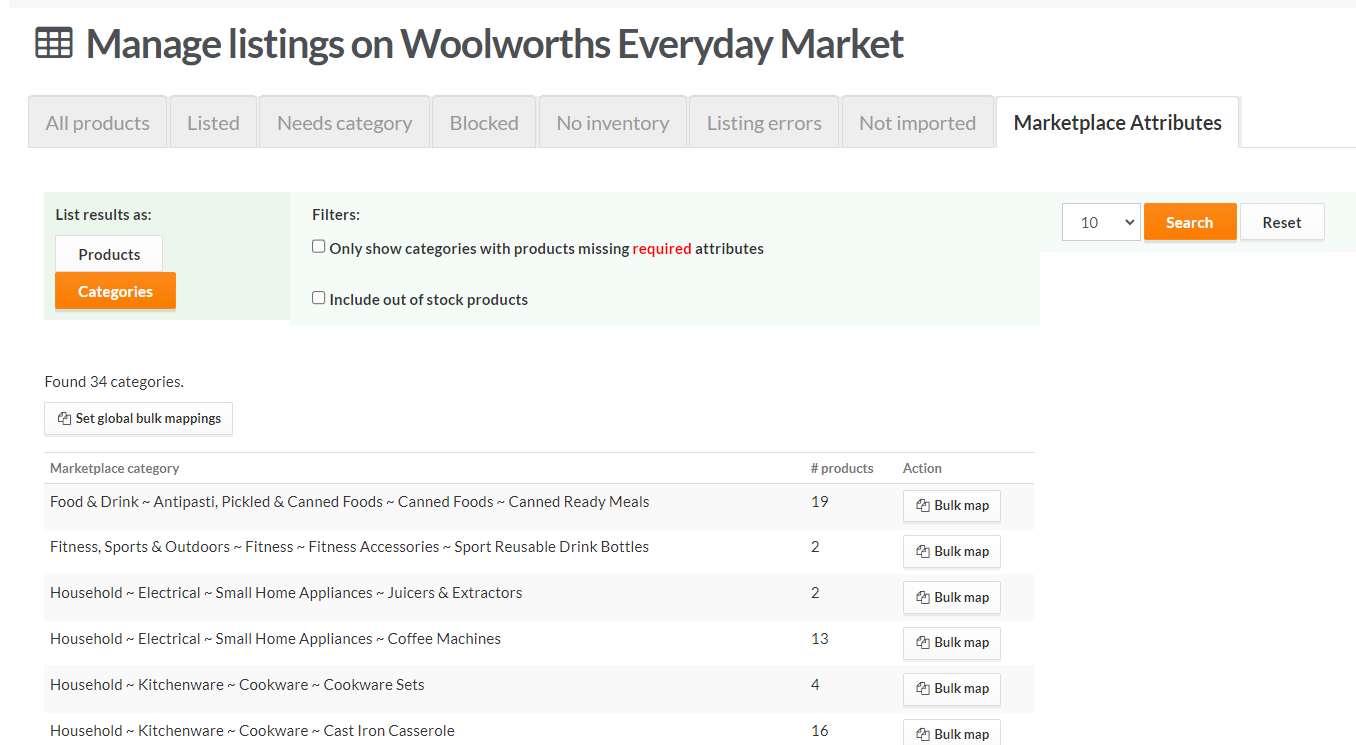
- In this example I will add attributes to the 2 products in the Juicers Category.
- Click Bulk Map to view all of the marketplace attributes you can select based on that category. In most cases you will need to scroll down the page, the attribute types are listed in alphabetical order.
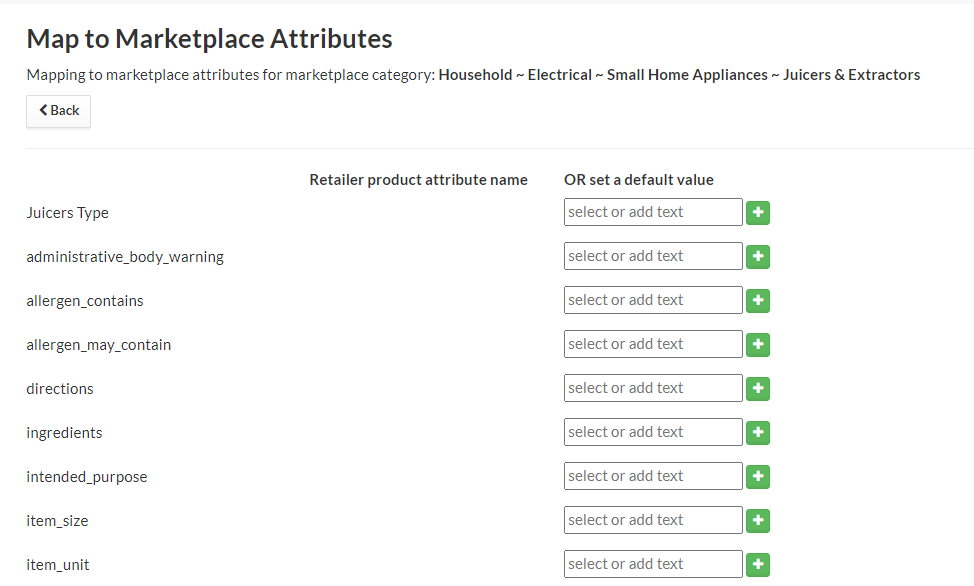
- Under the set a default value column you can select a value from the dropdown or you can type in a free text value.
- Complete your fields as needed, click the green tick to confirm your entry, you do not have to hit save or update on this page. Click the back button.
- Continue to bulk map based on category OR toggle back to products and apply your attribute values at the product level.
- To push an immediate change to Woolwoths click Upload from the Woolworths Everyday Marketplace Tab on the Dashboard.
- If not the new attribute data will sync in the next marketplace feed.
Required by Woolworths Everyday Marketplace (item_size and item_unit)
You can add this data in Omnivore, the Woolworths FAQ below explains in full detail, specifically covering the field options.
Eg.
item_size is a numeric value eg 10
item_unit will be grams, kilograms, litres, etc.
Please read this information on Comparative Unit Pricing (CUP) on the Woolworths Support Portal to help you when inputting your data into Omnivore.
Get more help
If you do require assistance please contact our Support Team by emailing request@omnivore.