
Key Points
- This FAQ explains how to map a store-added attribute (metafield) to a single product in Omnivore.
- The mapping only needs to be completed on one product within the relevant marketplace category.
- Once mapped, Omnivore automatically applies that attribute mapping to all products in the same marketplace category.
- There is no need to repeat the mapping process for every product in the category.
- Before mapping custom attributes in Omnivore, ensure the attribute data has been added to your eCommerce store.
- Omnivore imports these store attributes and metafields from your eCommerce platform.
- The imported data can then be mapped to the corresponding marketplace attribute.
- Correct mapping ensures the attribute information is displayed on the Product Listing Page (PLP).
- Follow the steps in this guide to import and map the attribute data successfully.
The FAQ's below cover more marketplace specific information. BUT in most cases the same method and function within Omnivore can be applied. The best 3 articles for Marketplace and Product Attribute Mapping are this one you are reading and the two below.
Map attributes for eBay Australia (called item specifics)
Attribute Naming
The name of the website attribute or metafield is not important other than making it easier to identify in Omnivore during mapping.
The attribute label itself does not need a special naming convention to work.
Weight Field limitation
Other than Magento and WooCommerce, for all other eCommerce platforms, product weight cannot currently be mapped from a metafield or attribute. If you need weight to be sent to a marketplace for shipping purposes, it must be entered in the native website product weight field.
Other store attributes or metafields may still be used for mapping where supported, but weight is an exception.
Add Attribute Data in your Store
Add the product attribute data to products in your eCommerce platform so we can import them into Omnivore allowing them to be mapped to your Marketplace Listings. You may have completed this step already.
- Shopify - use Shopify Metafields in Shopify
- WooCommerce - set up with data mapping from WooCommerce
- BigCommerce - use the Custom Fields in BigCommerce
- Magento - set up with data mapping from Magento
Changing Item Condition Using a Shopify Metafield
If you use a Shopify metafield to set or change a product's Item Condition for a marketplace, the metafield must be created at the Product level in Shopify.
Do not create the Item Condition metafield as a Variant metafield. Omnivore requires the Item Condition value at the product level for this use.
In Shopify:
- Create the Item Condition metafield under Products, not Variants.
- Add the required Item Condition value to the product.
- Import the metafield into Omnivore by going to the Omnivore Dashboard and hitting "Import from Shopify"
- Map your metafield to the product condition field at Settings->Shopify Feed->Map fields
Map Store & Marketplace Attribute Data to Products in Omnivore
Map your Product Attribute Data to the relevant Attribute in Omnivore:
- Find a product in Omnivore. Go to 'Products - Marketplace Name Manage Listings' and find a product you want to add custom attributes to. Click the Product Title to view the full product details page.
- Click on the Marketplace Name Tab (we are using Amazon in this case) - 'Marketplace Attributes'.
- On the left is the Attribute Name, right side is where you enter the Value.
- Choose from the drop-down to populate the field. Do not worry if you do not have a dropdown option for your Attribute, this just means that the attribute you have will be sent to the marketplace without needing to be mapped.
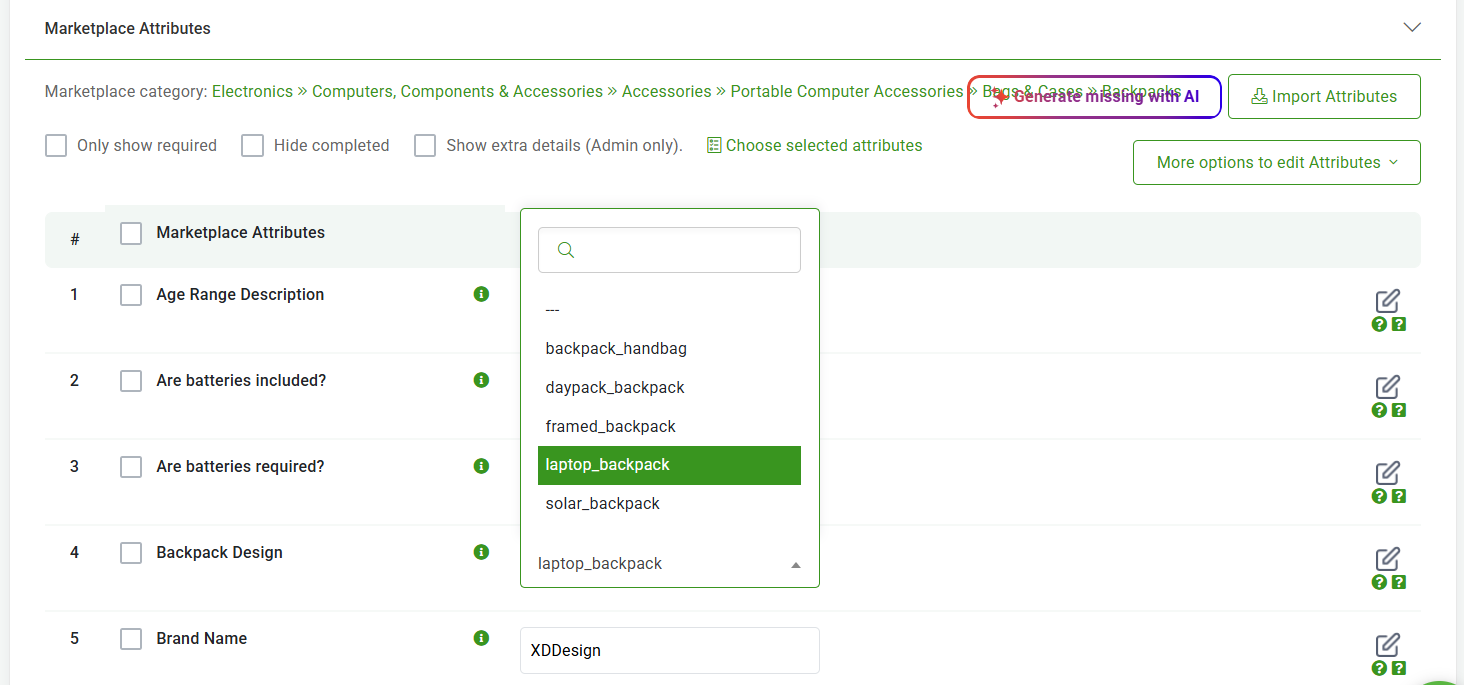
- Once you have finished mapping the attributes, you can click 'Upload to Marketplace' to update the product.
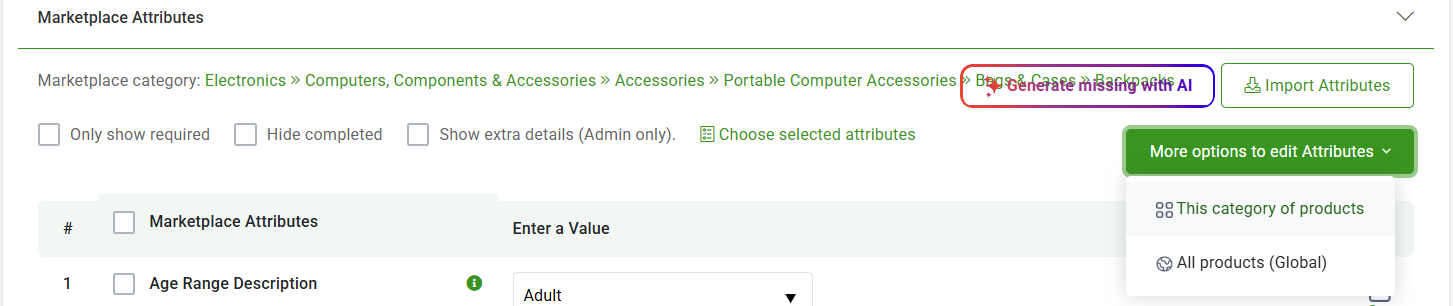
- Please note on the Product Page in this section mentioned above if you look to the right you can select more options to edit attriubutes at the category level (all prods in that category) or ALL Product which is Global.
Extra Functions and Screens to Make It Easier
Click Products - Marketplace Name - Marketplace Attribute Tab. This screen does the exact same thing as the product page.
Here you can:
-
Search a product and apply attributes.
-
Toggle from Product to Category to map attributes at those two levels
-
Set global bulk mapping
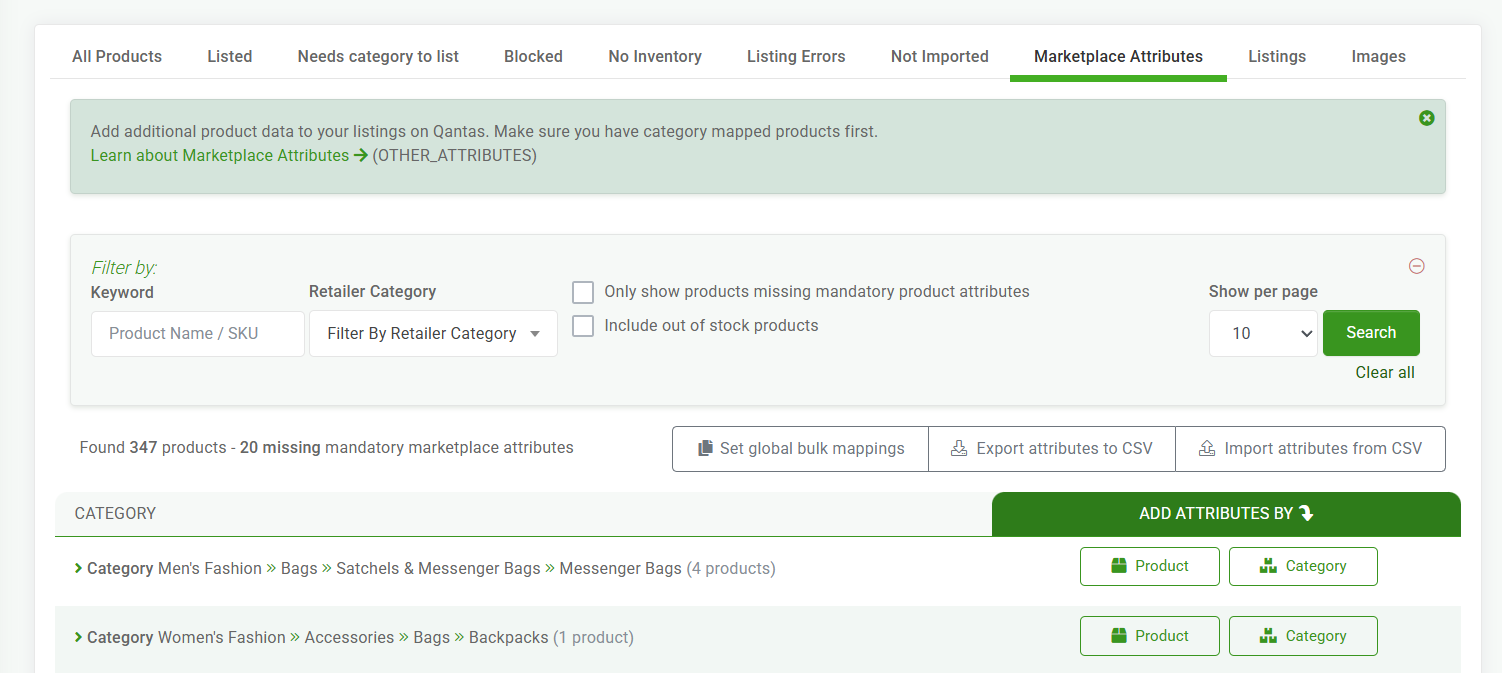
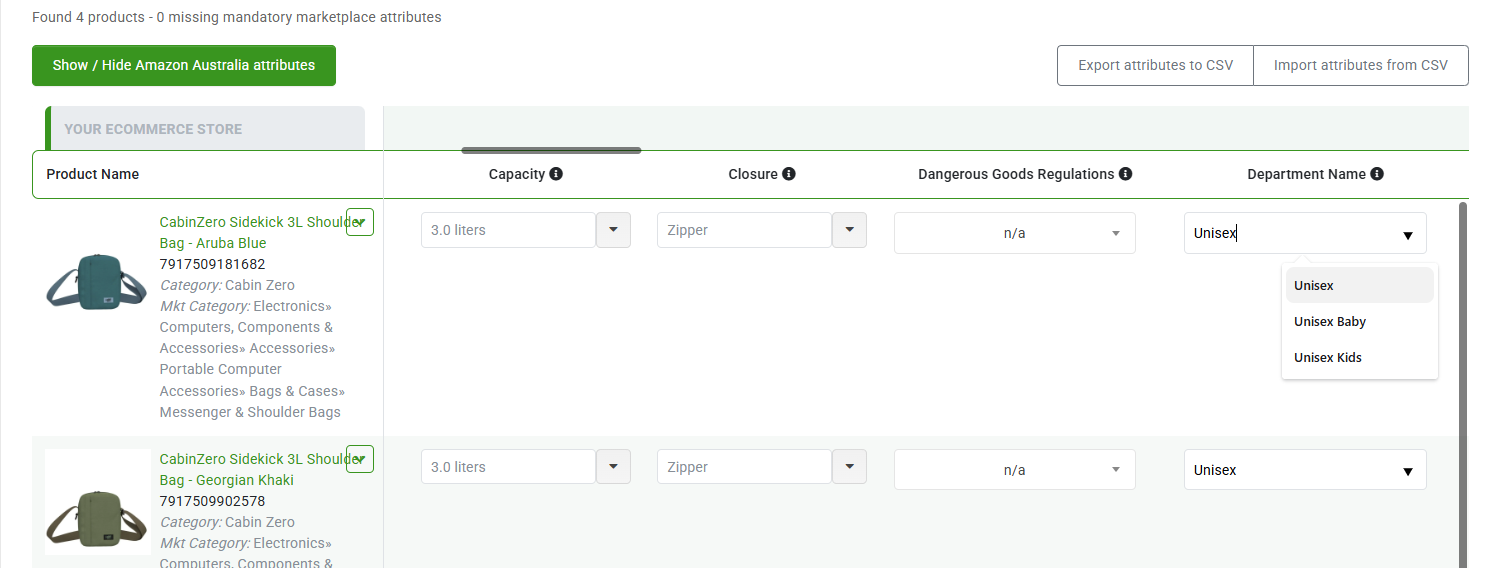
This section allows the same select by Drop-Down and scroll left to right to see all of the attributes to choose from.
NOTE:
- You only need to map a Product Attribute from your eCommerce platform to a Marketplace Attribute once; our system will then automatically populate it for all other products in that category.
- If there are additional product attributes that you do not want on the Marketplace, you can click the red 'x' button to block.
- Most markets will not use a Product attribute that is used to create variations for a multi-variant product. These variation specifics will be listed in the Product Attributes list, but they will not show as Attributes on the market.
- You can also use the Product Attributes from your eCommerce store for the Search and Filter however, if your data does not match the marketplace, you won't get the full benefit of search results. e.g you may have the Value 'Merino Cashmere Blend' in your eCommerce store, but the marketplace requires Merino OR Cashmere.
Summary and Additional Reading
Applying Store and Marketplace Attributes in Omnivore
Omnivore provides several methods for applying your store and marketplace attribute data to products.
This guide combines the Single Product for One Marketplace approach with Category Mapping for Marketplaces.
Using this method, you can map an attribute to a single product, and Omnivore will automatically apply that mapping to all products within the same marketplace category.
You may notice some overlap with other guides. This is because the related articles are focused on marketplace-specific processes, while this guide demonstrates how the two methods work together to streamline attribute mapping across a category.